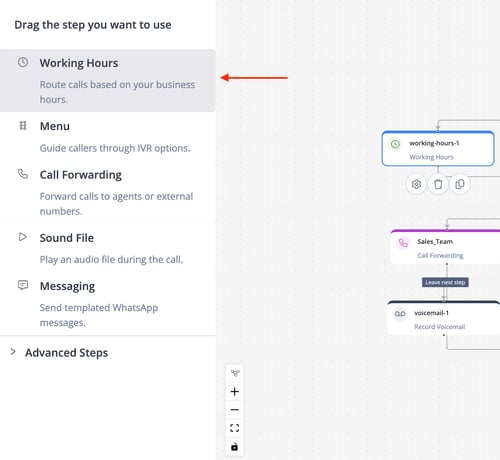
🔍 Overview of Working Hours Step
The Working Hours Step directs the call flow based on whether a call is received during or outside the configured working hours, making sure every call is handled the right way.
⚙️ Configuration
You can configure the working hours using one of the two ways below:
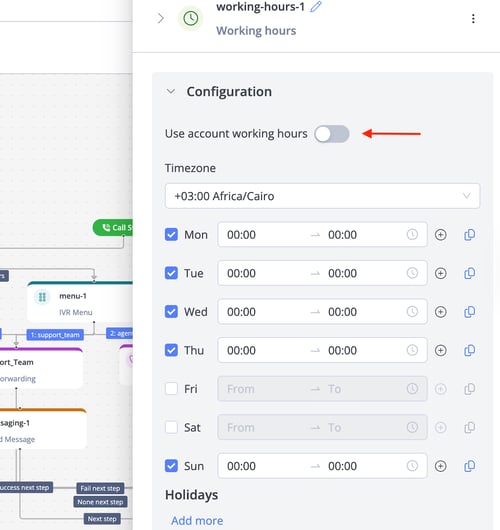
Use Account Working Hours
The account's working hours can be set in the Account Settings. The IVR flow can either:
- ✅ Toggle ON: Follow the predefined global account.
- ❌ Toggle OFF: Customize working hours specifically for this IVR step, without affecting the account’s working hours or other IVR steps.
Set Up Working Hours
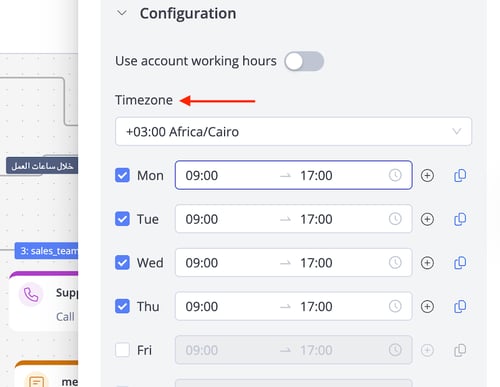
- 🌍 Timezone: Select the timezone that the working hours configuration will follow.
- Note: The selected timezone will apply to all agents, even if they work from a location with a different timezone.
- Example: If the selected timezone is GMT+1 and the working hours are 9 AM – 5 PM: an agent working from a location with a timezone of GMT+2 will see their working hours from 10 AM – 6 PM.
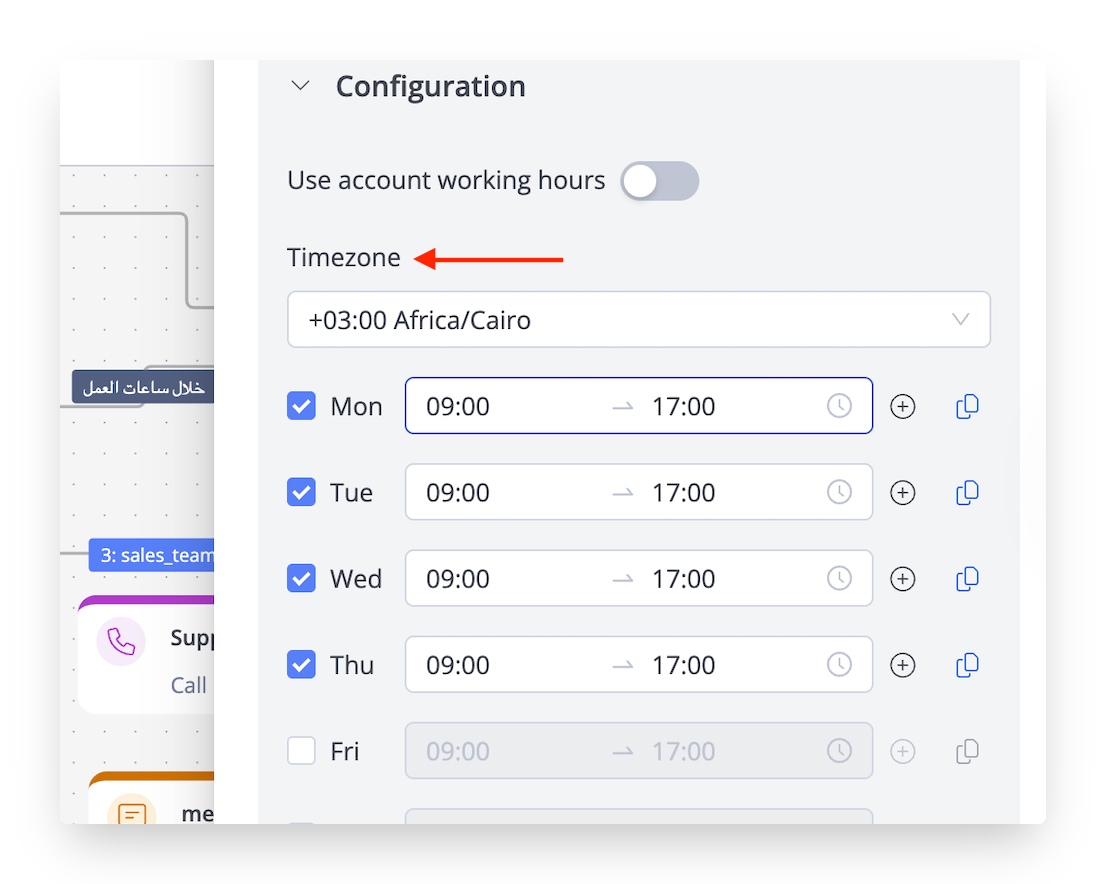
- 📅 Working Days: Choose the days of the week and their corresponding hours.
- Tip: If the working hours are the same across all days, you can just click the copy all icon on the right side to copy the configured hours and apply them to all other days.
- Example: Set Monday to Friday, 9 AM – 5 PM, for standard business hours.
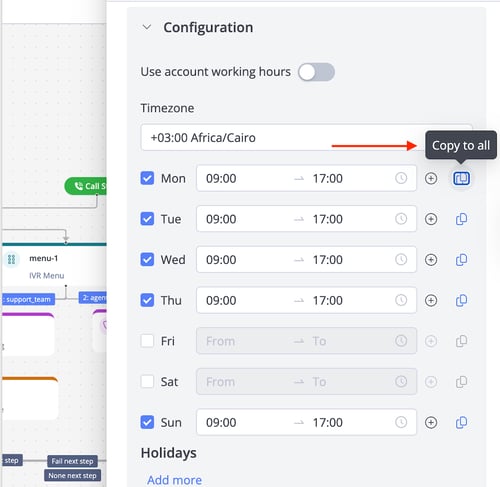
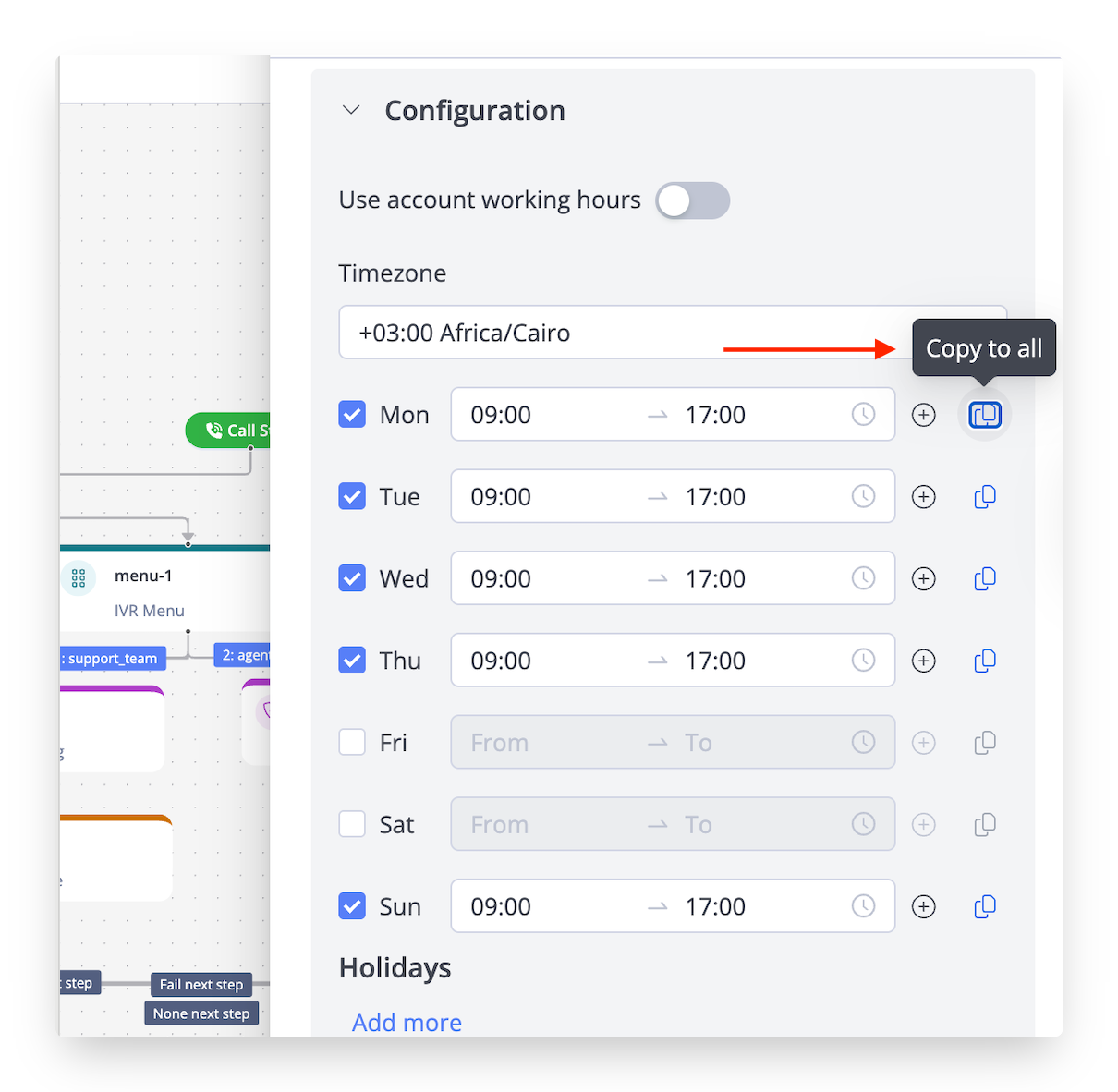
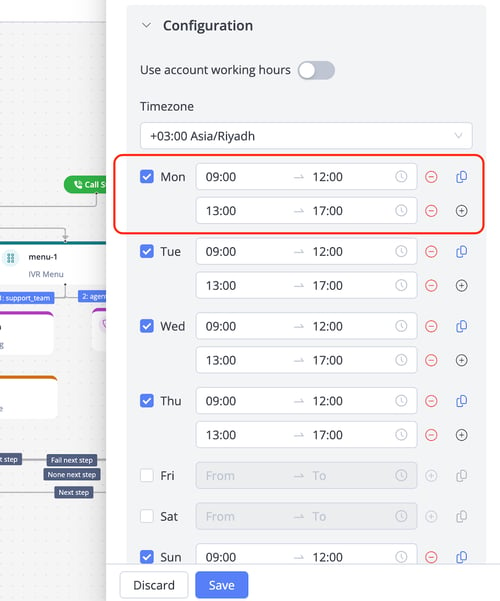
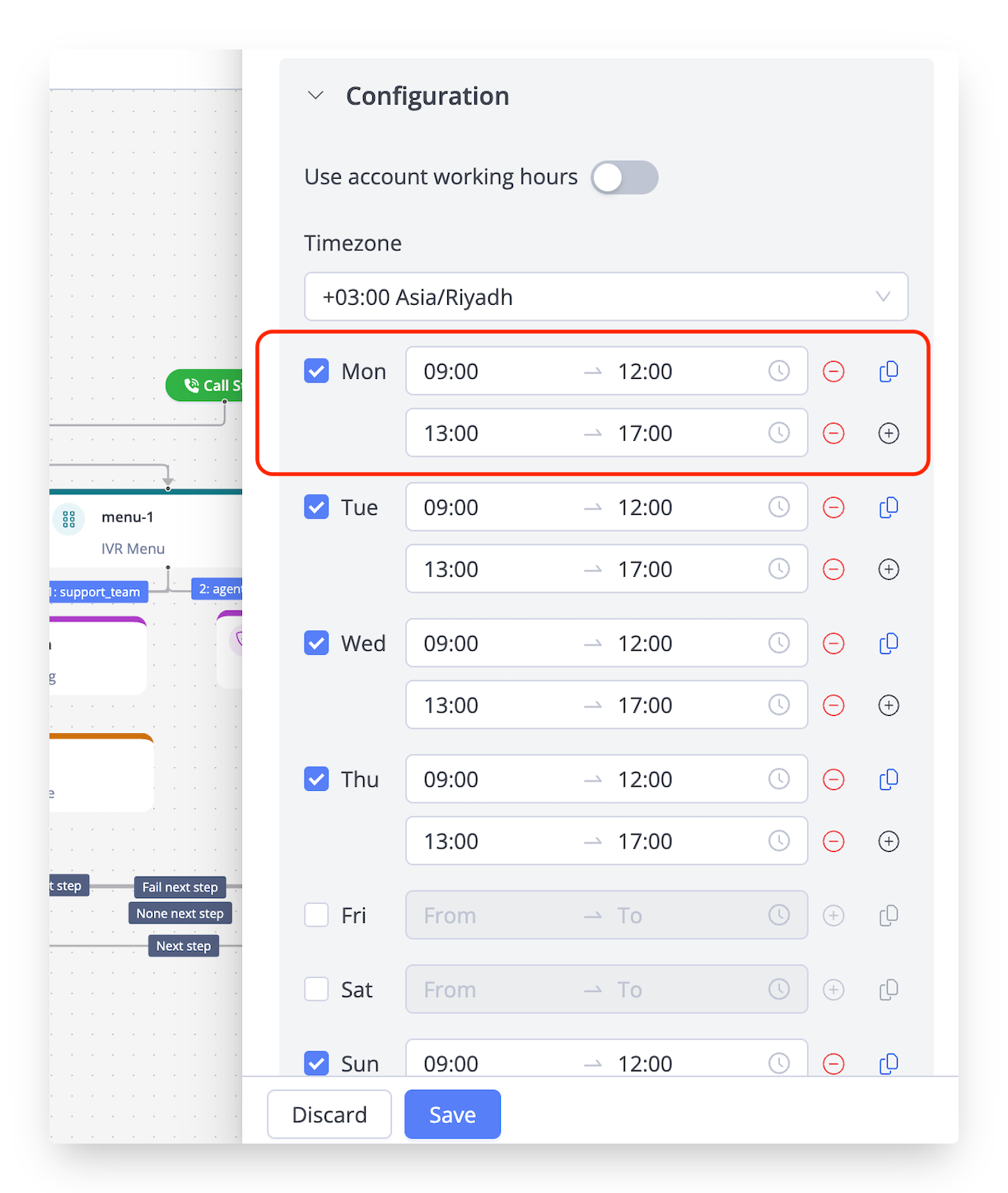
- 🔁 Same-Day Shifts: Use this if your schedule includes breaks or shifts. Split a day into multiple periods by clicking the + icon.
- Example: For a team working Sunday to Thursday with a break from 12 PM – 1 PM:
- Shift A → 9 AM – 12 PM
- Shift B → 1 PM – 5 PM
- Example: For a team working Sunday to Thursday with a break from 12 PM – 1 PM:
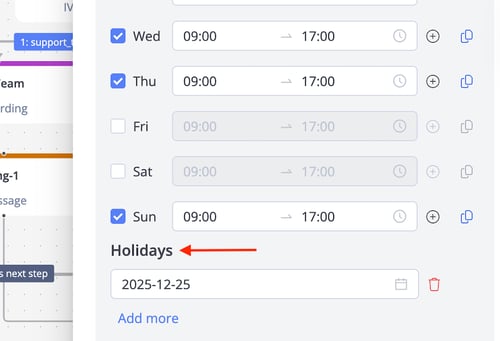
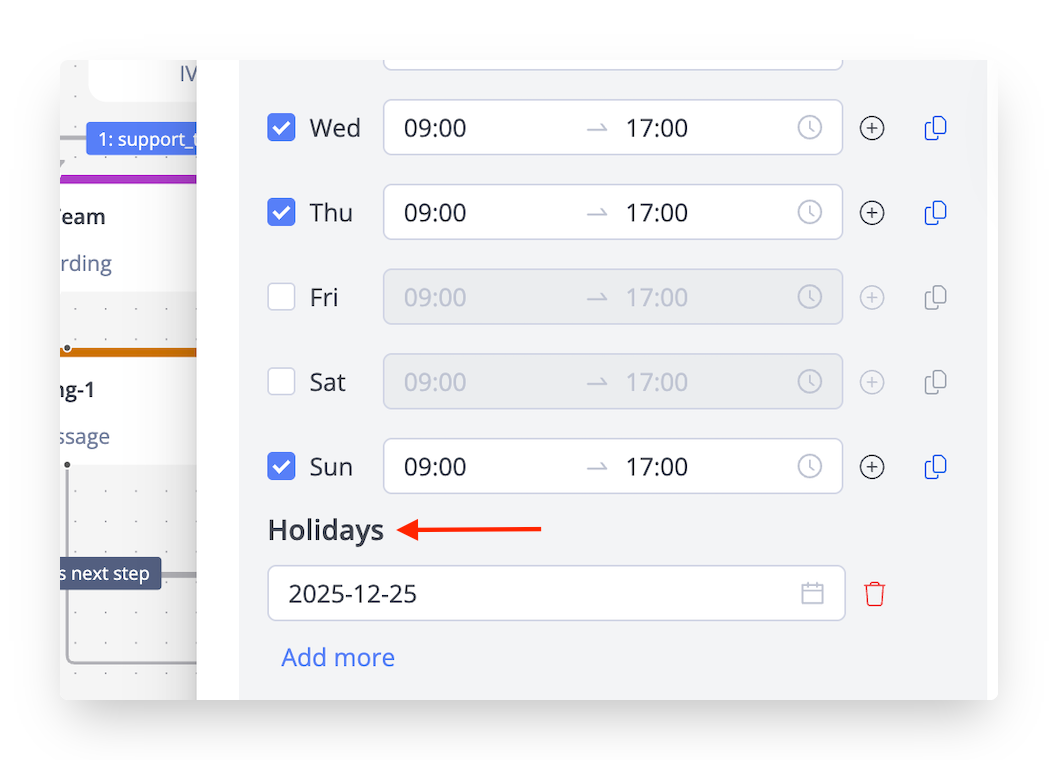
- 🎊 Holidays: Add specific dates when the team is unavailable, which will be considered outside working hours. Use the "Add more" option to include multiple dates.
- Example: Add 25 December 2025 as a holiday to route calls to voicemail.
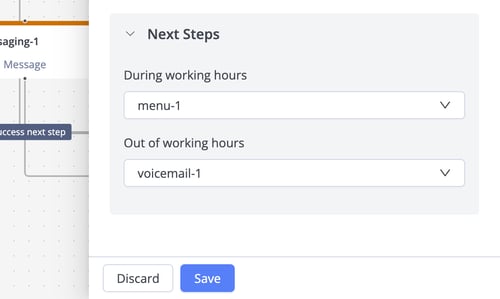
⏭️ Next Steps
- 📞 During Working Hours: Define the IVR steps for calls received during working hours (e.g., routing to a menu, an agent, or a group).
- 🌙 Out of Working Hours: Define the IVR steps for calls received outside working hours (e.g., routing to voicemail).