🔍 Overview of Set Flag Step
The Set Flag Step assigns a custom state to a call, overriding the default call state based on the configured flag. This helps with tailored call tracking and reporting.
Example: Change the state of unanswered calls from "abandoned" to "serviced" for specific scenarios.
📥 Default Inbound Call States
- Serviced: Calls successfully answered by an agent.
- Out of Hours: Calls received outside the account’s or IVR’s configured working hours.
- Dropped: Calls where the caller hung up while in the IVR, before reaching an agent.
- Abandoned: Calls where the caller hung up after being routed to an agent but before the agent answered, or calls that timed out due to no response from an agent.
- Blocked: Calls from blacklisted numbers.
⚙️ Configuration
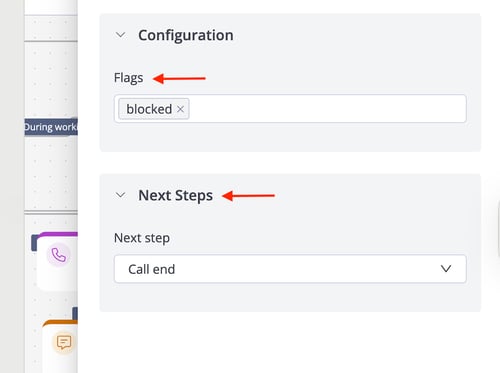
Flags
- Flag Input: Enter the custom flag to tag the call (e.g., "serviced").
- Example: Set flag = "serviced" to mark unanswered calls as serviced for reporting purposes.
- Requirements:
- Use lowercase characters only.
- Use call status in English only and don’t use the Arabic ones.
- Ensure correct spelling in the text box.
- Match the flag to the IVR flow’s intended state, as it overrides the default state.
⏭️ Next Steps
- After Setting the Flag: Specify the next IVR step to trigger after the flag is applied.