---
title: Menu Step
description: Learn how the IVR Menu Step presents audio options and routes callers based on keypad input, including keypress settings, finish key, and default actions.
---
[Skip to content](https://support.maqsam.com/menu-step#main-content)
- [English](https://support.maqsam.com/menu-step)
- [العربية](https://support.maqsam.com/ar/menu-step)
English
Show submenu for translations
[](https://support.maqsam.com?hsLang=en)
Open main navigation
Close main navigation
- - [English](https://support.maqsam.com/menu-step)
- [العربية](https://support.maqsam.com/ar/menu-step)
English
Show submenu for translations
Welcome to Maqsam
- There are no suggestions because the search field is empty.
1. [Welcome to Maqsam](https://support.maqsam.com/?hsLang=en)
2. [Voice](https://support.maqsam.com/voice?hsLang=en)
3. [🔀 IVR Builder](https://support.maqsam.com/voice?hsLang=en#ivr-builder)
# Menu Step
## Learn more about the Menu Step in IVR, how it presents callers with options, and routes calls based on their keypad input.
### 🔍 **Overview of Menu Step**
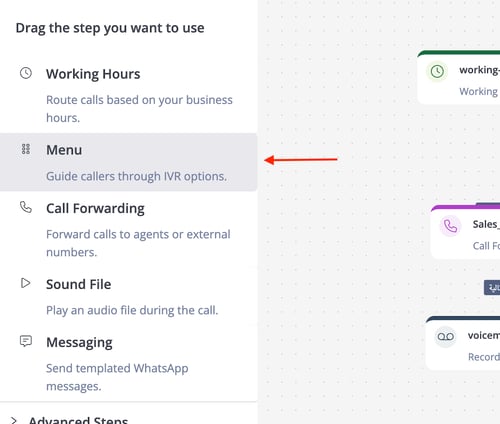
The Menu Step is an interactive decision point in the IVR call flow, presenting callers with audio-prompted options and routing calls based on their keypad input.
**Example:** A welcome message like "For sales, press 1; for support, press 2" directs callers to the appropriate department.
---
### ⚙️Menu Step Configurations
These are the configurations you will find in the Menu Step within the IVR Builder.
---
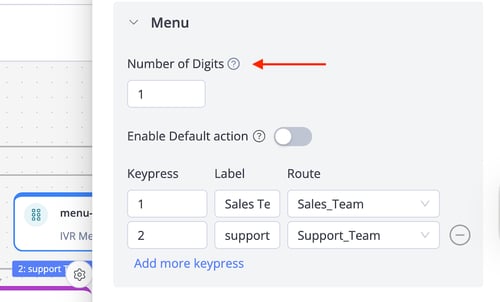
#### **Number of Digits**
Specifies the exact number of digits expected from the caller. The IVR auto-proceeds after receiving the set number.
**Example**: For "Press 1 for Sales," set Number of Digits = 1; for "Press 30 for Support," set Number of Digits = 2.
---
#### **Keypress Configuration**
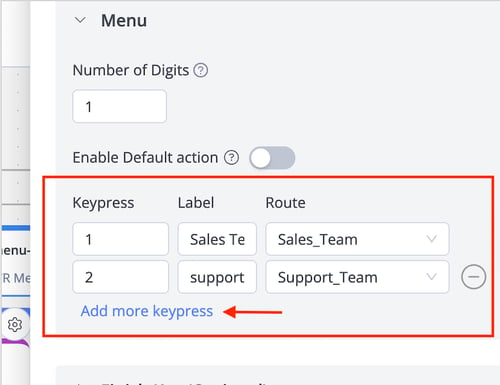
- **Keypress:** The digit(s) the caller enters to decide the flow (e.g., 1, 2). Use "Add more keypress" for additional options.
- **Label:** A descriptive route name appearing on the canvas for clarity (e.g., "Sales").
- **Route:** The next IVR step for the keypress (e.g., "Sales\_Queue").
Example: Map Digit 1 to "Sales Team Queue," Digit 2 to "Support Menu."
---
#### **Enable Default Action**
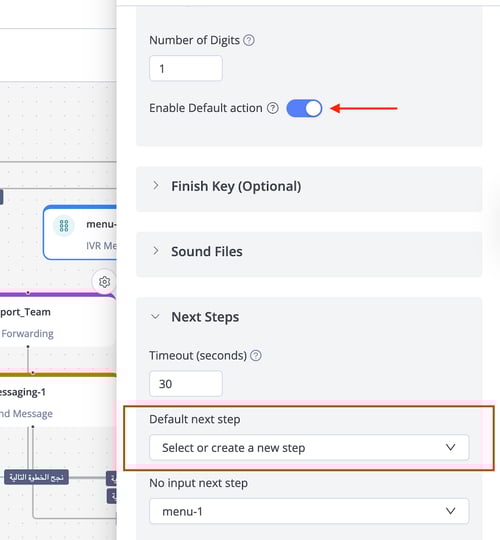
When toggled on, it routes callers to a fixed next step, bypassing keypress mappings and disabling Keypress configurations.
**Example**: Use for collecting data like phone numbers without routing to multiple paths.
💡 **Tip**: Configure the default next step in the "Next Steps" section.
---
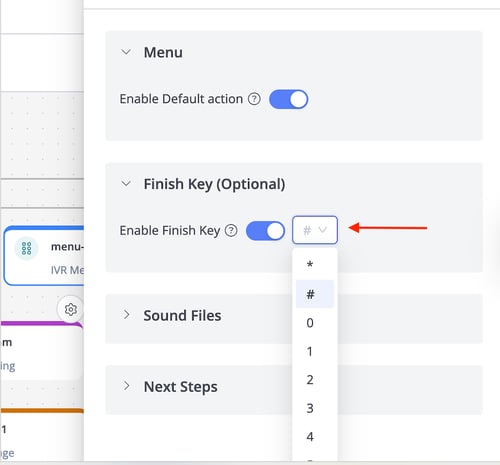
#### **Finish Key**
Defines a key (e.g., # or \*) that signals the IVR to process the input immediately, ideal for multi-digit entries like account numbers or order IDs.
**Example**: For "Enter your order ID and press #," set Finish Key = #.
💡 **Tip**: Commonly used when the default action toggle is enabled.
📌 **Note**: Enabling the Finish Key disables the Number of Digits setting, as the IVR waits for the finish key input to proceed.
---
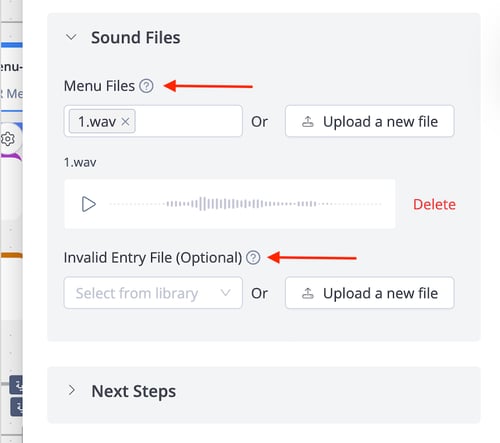
#### **Sound Files**
- **Menu Files:** The audio prompt listing options. Select from the library or upload a new file.
**Example**: "Welcome! For sales, press 1; for support, press 2."
- **Invalid Entry File:** Played when an unmapped key is pressed. Select from the library or upload a new .wav file.
**Example**: "Sorry, that option is invalid. Please try again."
📌 **Note**: If no Invalid Entry File is set, the IVR triggers the "Invalid Entry Next Step" without audio.
---
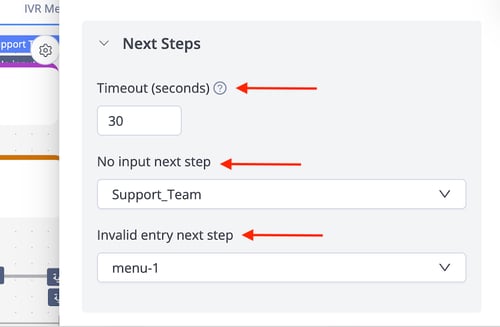
### ⏩ Next Steps
- **Timeout (Seconds)**: Duration the IVR waits for input before triggering the "No Input Next Step."
Example: A 10-second timeout repeats the menu or routes to the support team.
- **No Input Next Step**: Next step to be triggered if no input is received within the timeout period.
- **Invalid Entry Next Step**: Next step to be triggered after the caller enters invalid inputs (entries that don’t map with the configured keypress entries)
- **Default Next Step**: Next step to be triggered when the "Enable Default Action" toggle is on.
- [Getting Started](https://support.maqsam.com/getting-started?hsLang=en)
- [Administration](https://support.maqsam.com/administration?hsLang=en#main-content)
- [💳 Billing & Payments](https://support.maqsam.com/administration?hsLang=en#billing-payments)
- [⚙️ Account Settings](https://support.maqsam.com/administration?hsLang=en#%EF%B8%8F-account-settings)
- [Voice](https://support.maqsam.com/voice?hsLang=en#main-content)
- [🔀 IVR Builder](https://support.maqsam.com/voice?hsLang=en#ivr-builder)
- [📞 All Voice Features](https://support.maqsam.com/voice?hsLang=en#all-voice-features)
- [Messaging](https://support.maqsam.com/messaging?hsLang=en#main-content)
- [💬 WhatsApp](https://support.maqsam.com/messaging?hsLang=en#whatsapp)
- [Integrations](https://support.maqsam.com/integrations?hsLang=en#main-content)
- [🔌 HubSpot Integration](https://support.maqsam.com/integrations?hsLang=en#hubspot-integration)
- [🔌 Pipedrive Integration](https://support.maqsam.com/integrations?hsLang=en#pipedrive-integration)
- [🔌 Intercom Integrtion](https://support.maqsam.com/integrations?hsLang=en#intercom-integrtion)
- [🔌 Zendesk Integration](https://support.maqsam.com/integrations?hsLang=en#zendesk-integration)
- [🔌 FreshDesk Integration](https://support.maqsam.com/integrations?hsLang=en#freshdesk-integration)
- [🔌 Salesloft Integration](https://support.maqsam.com/integrations?hsLang=en#salesloft-integration)
- [🔌 Salesforce Integration](https://support.maqsam.com/integrations?hsLang=en#salesforce-integration)
- [🔌 Zoho Phonebridge Integration](https://support.maqsam.com/integrations?hsLang=en#zoho-phonebridge-integration)
- [Artificial Intelligence](https://support.maqsam.com/artificial-intelligence?hsLang=en#main-content)
- [AI Agent Studio](https://support.maqsam.com/artificial-intelligence?hsLang=en#ai-agent-studio)
- [Reports](https://support.maqsam.com/reports?hsLang=en)
- [Legal & Compliance](https://support.maqsam.com/legal-compliance?hsLang=en)
- [FAQs](https://support.maqsam.com/faqs?hsLang=en#main-content)
- [🔌 Integrations](https://support.maqsam.com/faqs?hsLang=en#integrations)
- [⚙️ Accounts](https://support.maqsam.com/faqs?hsLang=en#%EF%B8%8F-accounts)
- [💬 Messaging](https://support.maqsam.com/faqs?hsLang=en#messaging)
- [💳 Payments](https://support.maqsam.com/faqs?hsLang=en#payments)
- [📞 Voice](https://support.maqsam.com/faqs?hsLang=en#voice)
- [✅ Troubleshooting](https://support.maqsam.com/faqs?hsLang=en#troubleshooting)
[](https://maqsam.com/)
Copyright © 2026, Maqsam