
🔍 Overview of Managing Existing Numbers
Every phone number in your Maqsam account has its own page where you decide how that number behaves. Managing your numbers lets you control whether a number takes incoming calls and which IVR flow answers them, whether agents can call out from it, who is allowed to call it, and which users and groups see it in their dialer. When you no longer need a number, you can release it from the same page.
With number management, you are able to do the following:
-
📥 Turn inbound calls on or off for a number and assign the IVR flow that handles them.
-
📤 Turn outbound calls on or off so agents can or can't call out from the number.
-
👥 Restrict a number to selected groups or users in the dialer.
-
🗑️ Release a number you no longer need from your account.
⚙️ How to Access Number Settings
-
Log in to your Maqsam account.
-
Open your account settings and select Numbers under Account Settings.
-
Find the number in the list. You can use Search by name or number or click Filter to narrow the list.
-
Click the number's ID to open its page. It opens on the Settings tab.
💡 Tip: The IVR column on the Numbers page shows which flow each number uses, so you can spot numbers without a flow before opening them.
⚙️ How to Configure a Number
Set Up Inbound Calls
-
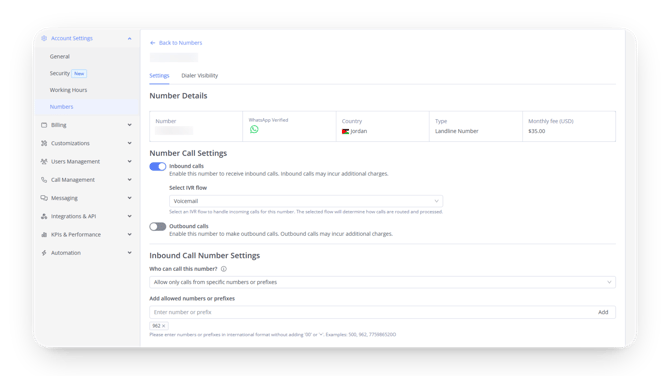
Open the number's Settings tab.
-
Turn on the Inbound calls toggle.
-
Choose a flow from the Select IVR flow list. Inbound Call Number Settings appears below.
-
Select an option under Who can call this number?: Allow all inbound calls or Allow only calls from specific numbers or prefixes.
-
Enter each allowed number or prefix in Add allowed numbers or prefixes and click Add, if you chose specific numbers or prefixes.
-
Click Save Changes.
Turn Outbound Calls On or Off
-
Open the number's Settings tab.
-
Switch the Outbound calls toggle on or off.
-
Click Save Changes.
Release a Number
-
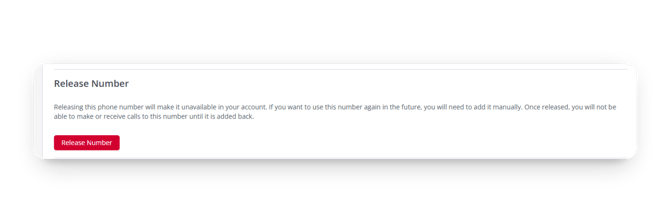
Open the number's Settings tab and scroll to Release Number.
-
Click Release Number.
📝 Note: You can also release a number from the Numbers page by clicking the ⋮ menu on its row and selecting Release.
Restrict Dialer Visibility
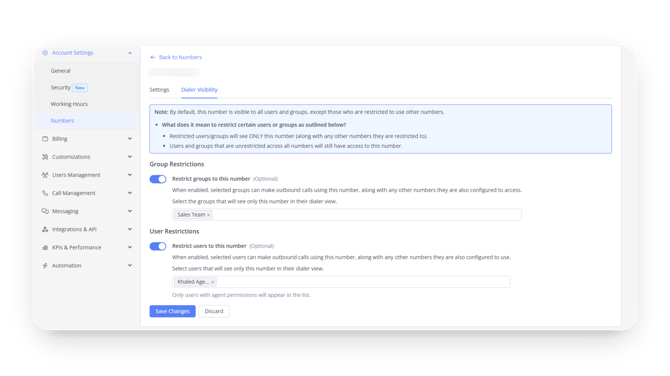
By default, a number is visible in the dialer to all users and groups, except those who are restricted to other numbers. Restricted users and groups see only the numbers they are restricted to, while unrestricted users and groups keep access to every number.
-
👥 Group Restrictions: Turn on Restrict groups to this number to choose the groups that will see only this number (and any other numbers they are restricted to) in their dialer.
-
👤 User Restrictions: Turn on Restrict users to this number to choose individual users the same way. Only users with agent permissions appear in the list.
📌 Notes
-
Inbound and outbound calls may incur additional charges.
-
Inbound Call Number Settings only appear after inbound calls are on and an IVR flow is selected.
-
A released number can no longer make or receive calls. To use it again, it has to be added back to your account, please contact support@maqsam.com in this case.
-
Your role needs the Manage Numbers control permission (Account Settings > User Roles) to change number settings.
❓ FAQ
Why don't I see Inbound Call Number Settings?
This section appears only after you turn on Inbound calls and choose a flow in Select IVR flow. Select a flow and the section shows up below the call toggles.
An agent can't see a number in their dialer. What should I check?
Check whether the agent or their group is restricted to other numbers on the Dialer Visibility tab. Restricted users and groups see only the numbers they are restricted to, so add them to this number's restrictions or remove the other restriction.
Why is a user missing from the Select users list?
Only users with agent permissions appear in Select users. Give the user a role with agent permissions, then return to the Dialer Visibility tab.
What happens when I release a number?
The number is removed from your account and can no longer make or receive calls. If you need it again later, contact support@maqsam.com to have it added back to your account.
Who can change a number's settings?
Users whose role includes the Manage Numbers control permission. An account owner can grant it under Account Settings > User Roles.