
🔍 Overview of Mobile App Dialer
The Maqsam mobile app dialer allows agents and admins to stay connected from anywhere. With it, you can place and receive calls, switch between Maqsam numbers, manage your status, browse contacts, check call history, and quickly report call issues. Below is a full breakdown of the available features and how to use them.
⭐ Key Features
Dialing & Receiving Calls
-
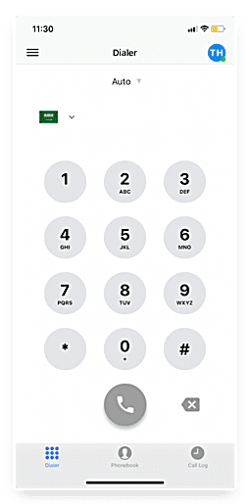
Change the country prefix by typing + followed by the country code (e.g., +966 for KSA).
-
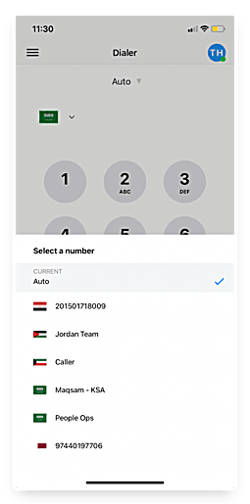
Tap Auto to view all Maqsam numbers assigned to you and select the number you want to dial from.
-
Leaving it on Auto uses your default Maqsam caller ID.
-
Receive inbound calls directly through the app.
Changing Your Status
-
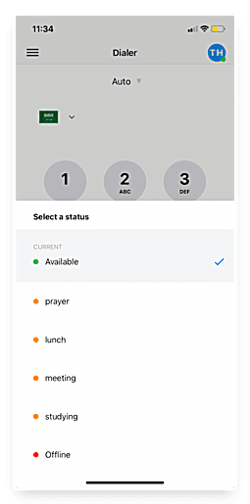
Tap your profile icon (top-right).
-
Switch between Available, Away, or Offline depending on your availability.
Phonebook Access
-
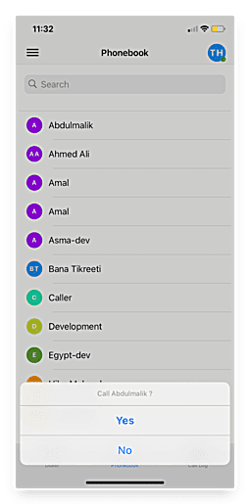
Open the Phonebook tab to view all saved Maqsam contacts.
-
Tap a contact name → select Yes to place a call.
Call Log
-
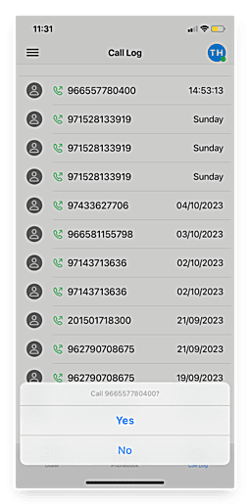
Review recent inbound and outbound calls.
-
Tap the phone icon → select Yes to redial any number.
Changing App Language
-
Go to Settings → Language.
-
Choose English or Arabic. 🌐
🛠️ Reporting a Problem
If you experience any issue during a call, you can report it directly from the app.
Steps:
-
Tap Report a problem.
-
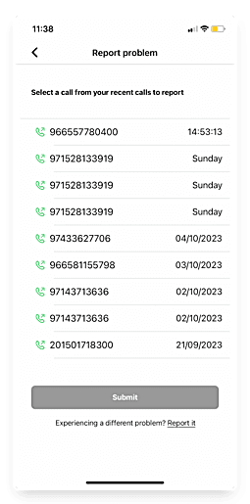
A list of your recent call activity will appear.
-
Select the number where the issue occurred.
-
Tap Submit.
-
Fill in the details (be as clear as possible).
-
Submit the report.
- Your report will be submitted to our Support team and we'll reach out.
👤 How to Login to the Maqsam Mobile App
To start using the Maqsam Mobile App, you'll need to link it to your account by scanning a QR code generated from your web settings. Follow the steps below to log in securely.
-
Open your Maqsam account on your desktop web browser.
-
Navigate to "Settings" then click "Mobile App".
-
Click "Generate a QR Code".
-
Open Maqsam Mobile App on your device.
-
Tap "Scan Code" and scan the QR code displayed on your desktop browser.
📱 Download Maqsam Mobile App
- Android: Google Play Store
- iOS: App Store
💡 Tips
-
Keep your app updated to the latest version for the best performance.
-
If you often switch countries, saving common prefixes helps speed up dialing.
-
Detailed issue reports allow the support team to resolve problems much faster.
- If the Mobile App tab does not appear in your account settings, please contact our support team to enable access.