
🔍 Overview of Call Notes Feature
Call Notes is a collaboration tool built into Maqsam’s contact center platform. It lets agents and supervisors add written notes to any call they handle, during or after the call.
Every note is stored alongside the call record, containing three pieces of information:
-
The note text itself.
-
The person who added the note.
-
The time the note was created.
Your team can have a thread of comments that everyone can read. Why is this important? This eliminates the need for scattered chat messages and helps maintain a single source of truth for what happened on a call.
The feature can be accessed from two parts of the web app:
-
Dialer page: Add notes while a call is ongoing or from the call history tab without leaving the call screen.
-
Calls page: Add notes at any time after the call has ended.
Below in this article is a step-by-step guide for both workflows.
📞 Option 1: Adding Notes from the Calls Page
Step 1: Open the Calls Tab
From the Maqsam portal, go to Calls. Each row represents a recorded call. The Notes column displays the number of notes already attached to each call.
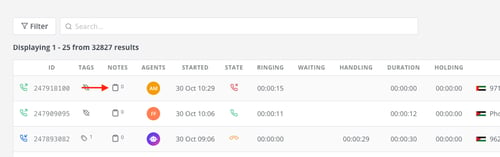
Step 2: In the Call Notes Column
Clicking on the call note’s icon opens a slide-out panel on the right with call details such as caller/recipient information, call tags, and a Call Notes section. When no notes exist, the section displays “No notes yet” and an Add Note button (see the screenshot below).
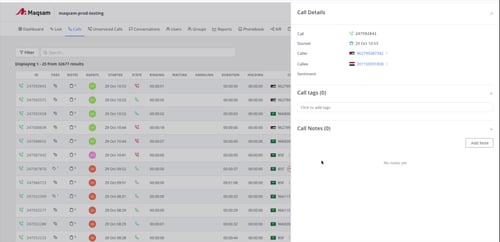
Step 3: Add New Notes
Select Add Note to open a text box. Type your comment (up to 500 characters). Use Save to save the note or Cancel to discard it. The example below shows a note being typed with the save button ready.
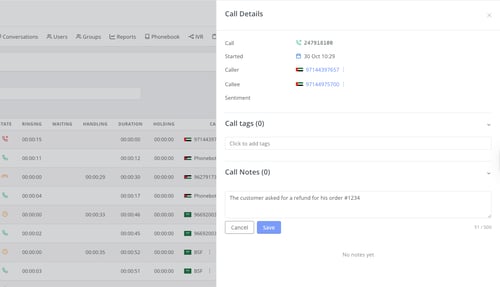
Step 4: View Saved Notes
After saving, the note appears immediately in the Call Notes section along with the author’s name and timestamp. Subsequent notes will be appended in chronological order, creating a conversation thread. The call list updates the notes counter, allowing you to see at a glance which calls have existing notes.
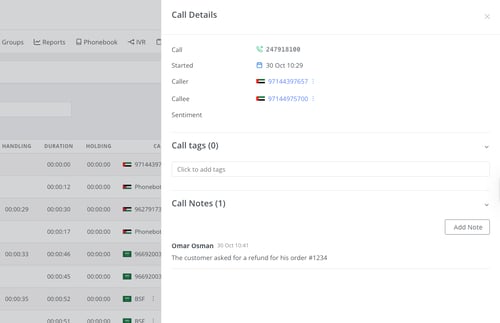
📌 Note: You can repeat the process to add multiple comments. Notes are visible to all users with access to the call, enabling managers and teammates to collaborate and leave guidance for future follow-ups.
📝 Option 2: Adding Notes During or After a Call (Dialer Page)
Add Notes During the Calls
Step 1: Start or Answer a Call
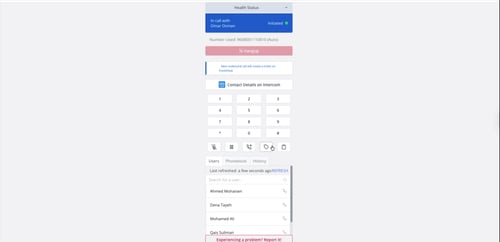
Navigate to the Dialer page and place an outbound call or answer an incoming one. While the call is active, the dialer shows call status, a dial pad, and action icons.
Step 2: Click the Note Icon
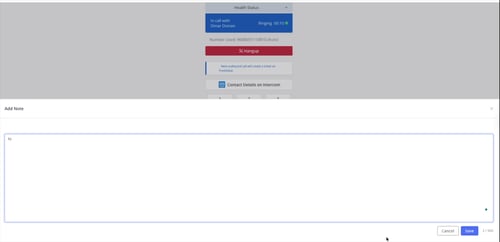
Among the action icons below the dial pad, you’ll find an icon that looks like a tag/sticky note. Selecting this icon opens the Add Note drawer at the bottom of the screen (see the following image).
Step 3: Enter Your Note
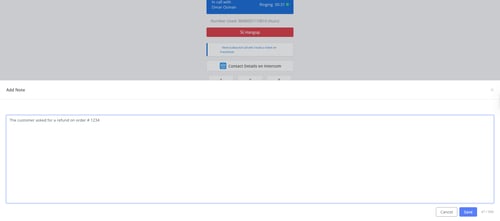
In the Add Note drawer, type your note in the text box. You can write up to 500 characters and can include details of what was discussed, follow-up actions, or any other contextual information. When finished, click Save.
Step 4: Confirm the Note is Saved
After saving, the drawer briefly displays a confirmation message such as “Note saved successfully.” The drawer can then be closed. All notes added during the call will be available later on the Calls page, grouped under the Call Notes section of that specific call record.
Add Notes After Calls (Dialer Page)
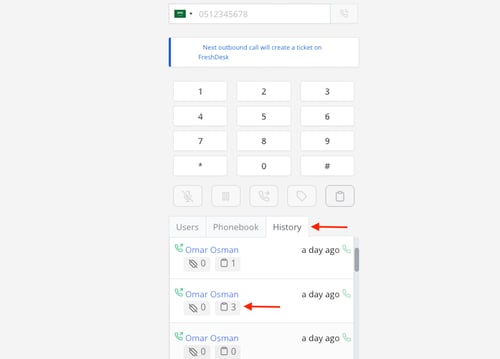
In the Dialer History tab, when you click the notes icon next to a call log, it opens the note-taking form, where you can add notes to the selected call.
🔎 How to Find Calls with Notes
1. Log in to Maqsam and click on the Calls tab.
2. Click Filter.
3. Tick Show only calls that have notes.
4. Click Filter to apply.
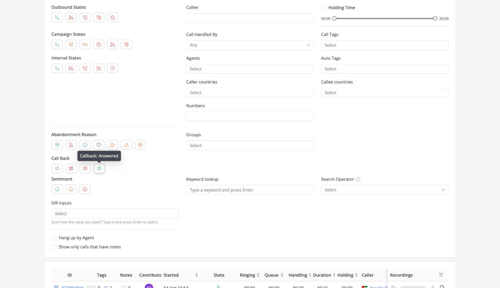
Tip: You can show or hide the Notes column from the Edit Columns icon at the top right of the calls table.
📊 Call Notes in Reports
Call notes are available as the Call Notes metric in the Reporting Engine, under the Calls primary key. Add it in Select Metrics when you create a custom report. See Reporting Engine Metrics.
💡 Tips
-
Multiple Notes: You can add as many notes as needed. Each entry is timestamped and labeled with the author’s name, allowing you to follow the conversation thread.
-
Edit History: Notes cannot be edited once saved. If you need to clarify or update information, add a new note to maintain the audit trail.
-
Visibility: Call notes are visible to all users who can view the call record. Use them to convey context to colleagues, brief supervisors, or document agreed-upon actions.
-
Character limit: Each note allows up to 500 characters; a character counter in the bottom right corner of the note box helps you track how much space is left.