
🔍 Overview of Auto-Tagging
The manual process of tagging and categorizing each call can be time-consuming and prone to human error. In order to streamline and improve the process for agents, resulting in enhanced efficiency and customer service, we introduce the auto-tagging feature. Using AI, the feature will automatically add tags to calls based on the call context so that it can help in providing accurate insights and analytics as well as saving agents time.
🎥 Watch a quick walkthrough of Auto-Tagging in action:
📝 What are the Prerequisites for Auto-Tagging?
-
Call Transcription feature should be enabled.
-
Have active auto tags defined in account settings under auto tags section.
⚙️ How to Manage Auto Tags
Auto tags are now managed through a dedicated section in Account Settings. You can create custom auto tags, edit existing ones, and activate or deactivate them as needed.
Creating a New Auto Tag
-
Log in to Maqsam as an admin.
-
Click on the settings tab.
-
Go to Account Settings.
-
Click on "Auto Tags" from the left sidebar.
-
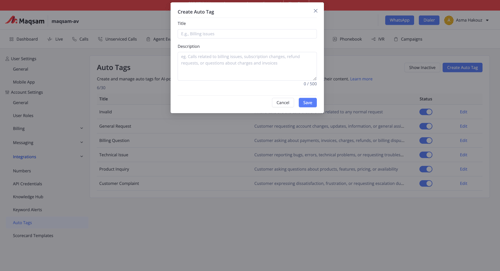
Click "Create Auto Tag" button.
-
Enter a Title for the tag (e.g., Billing Issues).
-
Enter a Description that provides context for when this tag should be applied (e.g., Calls related to billing issues, subscription changes, refund requests, or questions about charges and invoices).
-
Click "Save".
Editing an Auto Tag
-
Navigate to Account Settings > Auto Tags.
-
Find the tag you want to edit.
-
Click the "Edit" button next to the tag.
-
Modify the Title or Description as needed.
-
Click "Save" to apply changes.
Activating or Deactivating Auto Tags
Each auto tag has a toggle switch that allows you to activate or deactivate it individually. When a tag is deactivated, it will no longer be applied to new calls.
-
Navigate to Account Settings > Auto Tags.
-
Find the tag you want to activate or deactivate.
-
Click the toggle switch next to the tag to turn it on or off.
Predefined Auto Tags
Maqsam provides a set of predefined auto tags that cover common call categories. You can edit or deactivate these tags as needed:
|
Title |
Description |
|
Customer Complaint |
Customer expressing dissatisfaction, frustration, or requesting escalation due to service or product issues |
|
Product Inquiry |
Customer asking questions about products, features, pricing, or availability |
|
Technical Issue |
Customer reporting bugs, errors, technical problems, or requesting troubleshooting assistance |
|
Billing Question |
Customer asking about payments, invoices, charges, refunds, or billing disputes |
|
General Request |
Customer requesting account changes, updates, information, or general assistance |
Custom Tags and Limits
-
You can create custom auto tags beyond the predefined ones to match your specific business needs.
-
A maximum of 30 auto tags can be active at any given time.
-
The AI can apply multiple tags to a single call based on the conversation context.
📊 AI Dashboard Insights
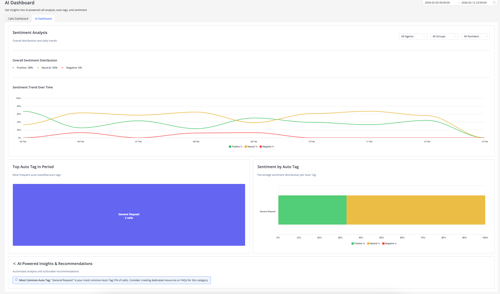
The AI Dashboard provides comprehensive analytics on your auto tags, helping you understand call patterns and customer sentiment.
What the Dashboard Shows
-
Sentiment Trends Over Time: Track how positive, neutral, and negative sentiment changes across your calls.
-
Top Auto Tags in Period: See which tags are most frequently applied to calls, helping you identify common customer issues or inquiries.
-
Sentiment by Auto Tag: Understand the sentiment distribution for each auto tag (percentage of positive, neutral, and negative calls).
-
AI-Powered Insights and Recommendations: Get automated analysis and actionable recommendations, such as identifying the most common auto tag and suggestions for creating dedicated resources or FAQs.
⚙️ How to View Auto Tags on Calls (Legacy - Will Deprecate Soon)
Note: The following methods for viewing auto tags will be deprecated soon. Please use the new Auto Tags section in Account Settings for managing tags.
📞 Calls Page
-
Log in to Maqsam and click on the 'Calls' tab.
-
Scroll to the call you want to check.
-
Click on the expand icon.
-
Once you click on this button, the row will expand to show you the call tags.
-
You can view the auto-tag added to the call with an icon beside it.
📞 Call Show Page
-
Log in to Maqsam and click on the 'Calls' tab.
-
Scroll to the call you want to check.
-
Click on the call ID.
-
Once you click on the call ID, you will be redirected to the call show page.
-
You can view the auto-tag in call tags section with an icon beside it.