---
title: Sound File Step
description: Learn how the Sound File Step works in Maqsam IVR call flows, including audio file playback, loop settings, Text-to-Speech configurations, and next step routing for a customized caller experience.
---
[Skip to content](https://support.maqsam.com/sound-file-step#main-content)
- [English](https://support.maqsam.com/sound-file-step)
- [العربية](https://support.maqsam.com/ar/sound-file-step)
English
Show submenu for translations
[](https://support.maqsam.com?hsLang=en)
Open main navigation
Close main navigation
- - [English](https://support.maqsam.com/sound-file-step)
- [العربية](https://support.maqsam.com/ar/sound-file-step)
English
Show submenu for translations
Welcome to Maqsam
- There are no suggestions because the search field is empty.
1. [Welcome to Maqsam](https://support.maqsam.com/?hsLang=en)
2. [Voice](https://support.maqsam.com/voice?hsLang=en)
3. [🔀 IVR Builder](https://support.maqsam.com/voice?hsLang=en#ivr-builder)
# Sound File Step
## Learn more about the Sound File Step in IVR, how it plays audio messages, and how to configure Text-to-Speech for static or dynamic messages.
### 🔍 Overview of Sound File
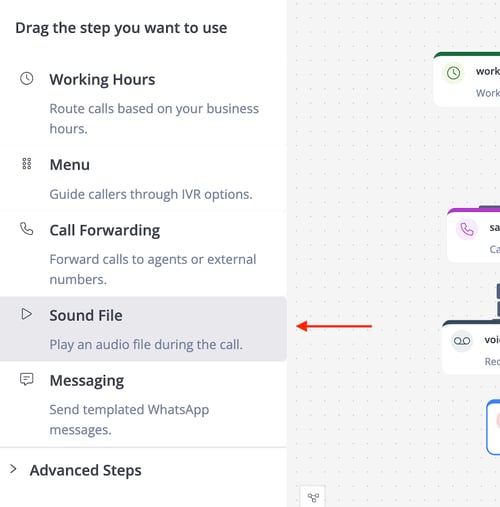
The **Sound File Step** plays an audio file during an IVR call flow, such as a greeting, announcement, or instructional message, before proceeding to the next configured step.
---
### ⚙️ Sound File Configuration
#### **Sound File Upload**
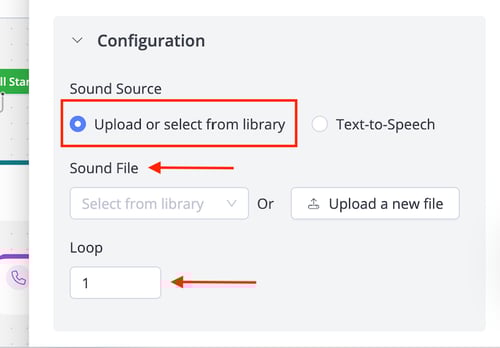
- Upload a new audio file or select from the library of previously uploaded files.
- **Supported Formats:** .mp3 and .wav.
#### **Number of Loops**
This setting defines how many times the audio file plays before the IVR moves to the next step, considering that the initial play is counted as the first one in the loop.
**Example**: Setting the number of loops to 3 means the audio file repeats three times before moving to the next step, such as a menu or voicemail.
#### **Next Steps**
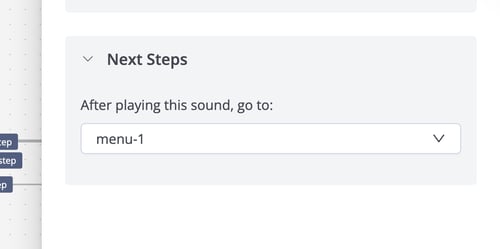
**After Playing the File, Go To:** Specifies the next IVR step after the audio file has played completely.
---
### 🗣️ Text-To-Speech Configurations
**The Text-to-Speech (TTS) Step** converts written text into spoken audio, generating sound files that can be played during the IVR call flow.
It supports both:
- Static text (fixed phrases)
- Dynamic text based on the variables fetched from your system through API, such as order ID or caller name, etc.
This step makes the IVR flow more customized and saves a significant amount of time and effort that would have been spent on voice recording.
#### **Language and Voice**
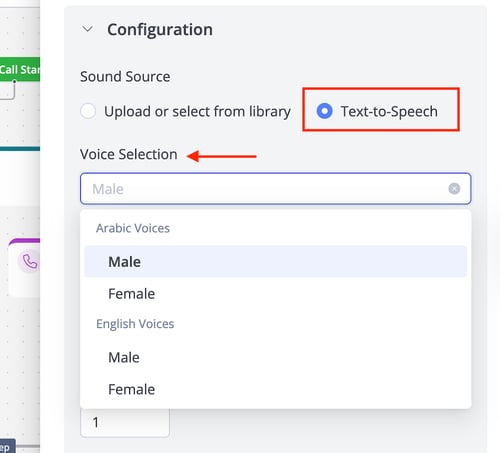
- **Language:** TTS at Maqsam supports both Arabic and English languages
- **Voice Gender Options:** Male and Female voices are supported for the Arabic and English languages. The gender can be selected according to your preference.
---
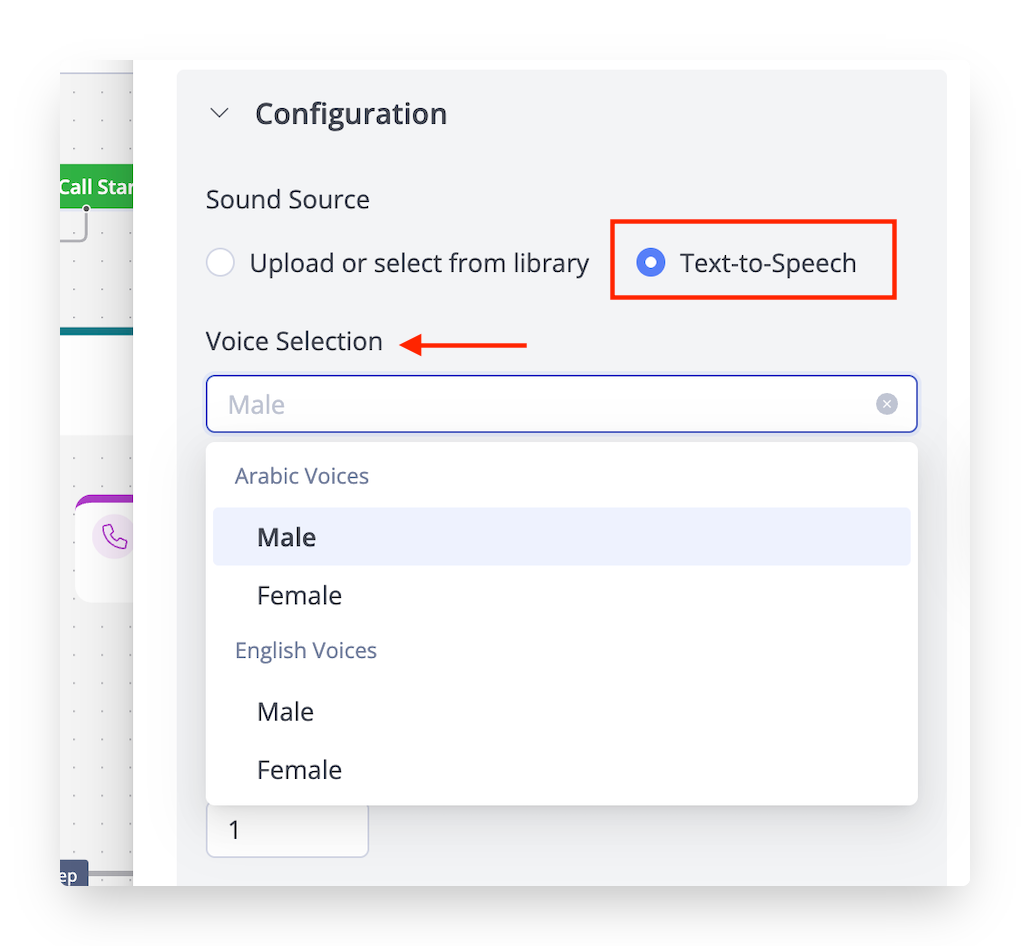
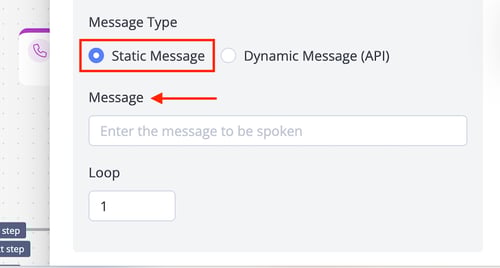
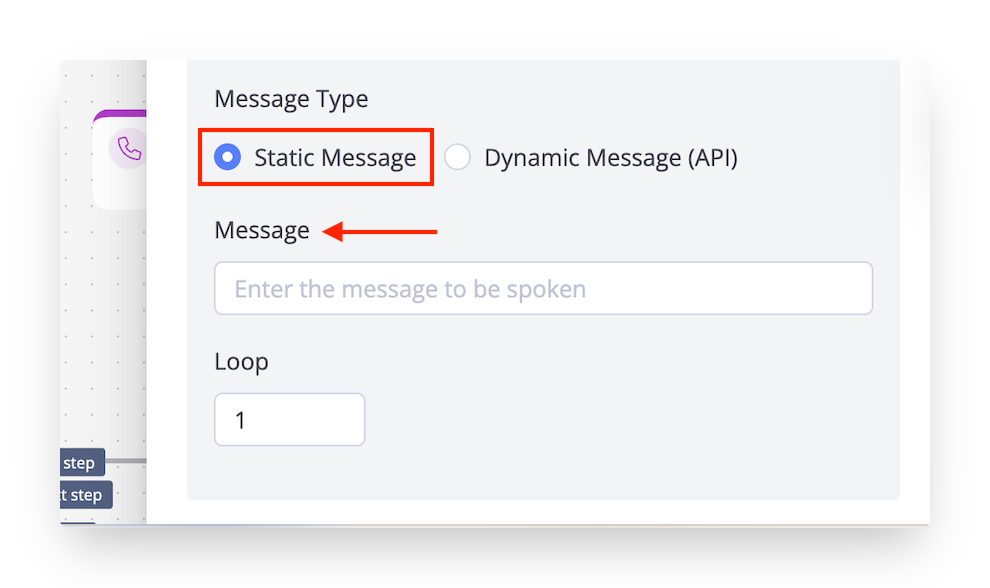
#### **Static TTS Message**
- **Static Text:** Enter fixed text to be converted to speech.
**Example**: "Welcome to our service" generates a consistent greeting.
#### **Next Steps**
- **After playing the sound, go to:** Specifies the next IVR step, such as routing to a menu or call forwarding.
---
#### **Dynamic TTS Message**
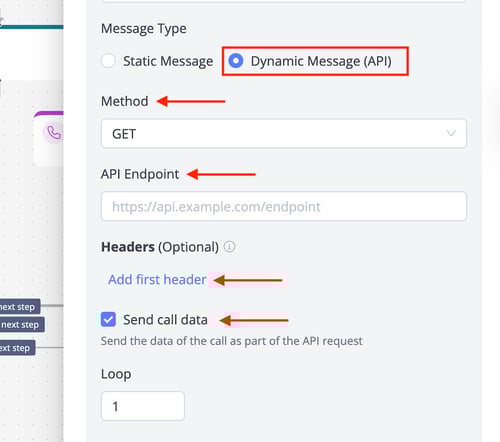
- **Dynamic Text:** It sends all the caller information to the external system, then fetches the full text from this other external system using an API request, then this text gets converted to voice through Maqsam, and the IVR plays the converted voice to the caller.
The configuration of the dynamic step is as follows
1. Select the API method
2. Enter the API endpoint URL
3. Add headers if needed
4. The 'Send call data' box can be checked so that caller data is sent along with the API request.
5. The expected response is a text that Maqsam will convert to a voice message through the call.
**Example**: "Hello {caller\_name}, your order {order\_id} is ready" personalizes messages based on caller data.
#### **Next Steps**
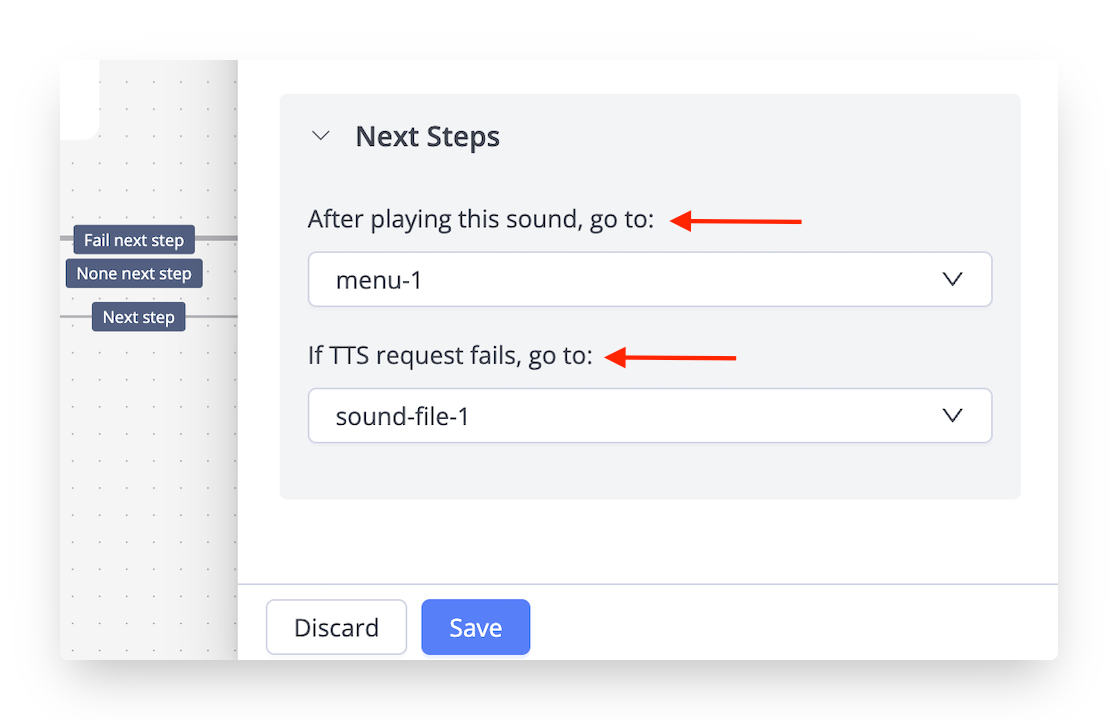
- **After playing the sound, go to:** Specifies the next IVR step, such as routing to a menu or call forwarding.
- **If the TTS request fails, go to:** In case the dynamic TTS is selected, and the API call, for any reason, fails, the next IVR step is to be configured from here.
- [Getting Started](https://support.maqsam.com/getting-started?hsLang=en)
- [Administration](https://support.maqsam.com/administration?hsLang=en#main-content)
- [💳 Billing & Payments](https://support.maqsam.com/administration?hsLang=en#billing-payments)
- [⚙️ Account Settings](https://support.maqsam.com/administration?hsLang=en#%EF%B8%8F-account-settings)
- [Voice](https://support.maqsam.com/voice?hsLang=en#main-content)
- [🔀 IVR Builder](https://support.maqsam.com/voice?hsLang=en#ivr-builder)
- [📞 All Voice Features](https://support.maqsam.com/voice?hsLang=en#all-voice-features)
- [Messaging](https://support.maqsam.com/messaging?hsLang=en#main-content)
- [💬 WhatsApp](https://support.maqsam.com/messaging?hsLang=en#whatsapp)
- [Integrations](https://support.maqsam.com/integrations?hsLang=en#main-content)
- [🔌 HubSpot Integration](https://support.maqsam.com/integrations?hsLang=en#hubspot-integration)
- [🔌 Pipedrive Integration](https://support.maqsam.com/integrations?hsLang=en#pipedrive-integration)
- [🔌 Intercom Integrtion](https://support.maqsam.com/integrations?hsLang=en#intercom-integrtion)
- [🔌 Zendesk Integration](https://support.maqsam.com/integrations?hsLang=en#zendesk-integration)
- [🔌 FreshDesk Integration](https://support.maqsam.com/integrations?hsLang=en#freshdesk-integration)
- [🔌 Salesloft Integration](https://support.maqsam.com/integrations?hsLang=en#salesloft-integration)
- [🔌 Salesforce Integration](https://support.maqsam.com/integrations?hsLang=en#salesforce-integration)
- [🔌 Zoho Phonebridge Integration](https://support.maqsam.com/integrations?hsLang=en#zoho-phonebridge-integration)
- [Artificial Intelligence](https://support.maqsam.com/artificial-intelligence?hsLang=en#main-content)
- [AI Agent Studio](https://support.maqsam.com/artificial-intelligence?hsLang=en#ai-agent-studio)
- [Reports](https://support.maqsam.com/reports?hsLang=en)
- [Legal & Compliance](https://support.maqsam.com/legal-compliance?hsLang=en)
- [FAQs](https://support.maqsam.com/faqs?hsLang=en#main-content)
- [🔌 Integrations](https://support.maqsam.com/faqs?hsLang=en#integrations)
- [⚙️ Accounts](https://support.maqsam.com/faqs?hsLang=en#%EF%B8%8F-accounts)
- [💬 Messaging](https://support.maqsam.com/faqs?hsLang=en#messaging)
- [💳 Payments](https://support.maqsam.com/faqs?hsLang=en#payments)
- [📞 Voice](https://support.maqsam.com/faqs?hsLang=en#voice)
- [✅ Troubleshooting](https://support.maqsam.com/faqs?hsLang=en#troubleshooting)
[](https://maqsam.com/)
Copyright © 2026, Maqsam