
Part 1: Installing Maqsam CTI application
-
Install our Salesforce CTI application from this link.
-
Choose whether you want to install it either in Production or Sandbox. - Select install to Install for All Users.
Part 2: Enable Salesforce integration on your Maqsam Account
-
Go to your account settings page on Maqsam.
-
Scroll down to the Integrations card and open the Salesforce tab.
-
Configure the settings as you see fit and click Update and Enable.
Part 3: Configuring the Call Center on Salesforce
-
Go to Setup and navigate to Home.
-
Use the quick search to navigate to Call Centers. You should see Maqsam CTI. Click on it.
-
Click on Edit beside "Maqsam Call Center Detail"
-
Change the CTI adapter URL to:
https://portal.{base_URL}/integrations/salesforce/autologin
-
ℹ️ You can find your base_url by going to your Account Settings > API Credentials page > View Base API URL.
-
Using Manage Call Center Users add users who will be using the Maqsam CTI integration.

🗒️NOTE: You cannot add Users that are already added to another call center.
-
Configure the SoftPhone Layouts: This involves the following steps to enable specific feature behaviour.
-
From the same left-hand side menu as before, click onSoftPhoneLayouts. Create a new one, we recommend setting the softphone layouts as you’ll see in the following pictures. However, Maqsam will follow whatever you configure in those pages.
-
Assigning theSoftPhoneLayout to Users: Click SoftPhone Layout Assignment to assign the newly created layout to relevant profiles.
Part 4 : Allow Maqsam in Salesforce CSP Trusted Sites
Important: Salesforce Lightning enforces Content Security Policy (CSP) which blocks third-party CTI frames unless explicitly trusted.
You need to add Maqsam’s domains to your CSP Trusted Sites list to ensure the Maqsam softphone loads correctly:
Step 1: Go to Salesforce, click the ⚙️icon → Setup.
Step 2: In the Quick Find box, type CSP and select CSP Trusted Sites (or Trusted URLs depending on your Salesforce version).
Step 3: Click New Trusted Site and fill in the details:
-
Trusted Site Name: Maqsam_CTI
-
Trusted Site URL: Enter the base URLs that is being blocked:
-
https://portal.(av/mq/sa).maqsam.com/
-
https://portal.{base_url}
-
ℹ️ You can find your base_url by going to your Account Settings → API Credentials page → View Base API URL, if both URLs are the same, then just add one to avoid duplicates.
-
Context: Select All
-
Active: Make sure this checkbox is checked.
Step 4: Allow Framing: Under the "CSP Directives" section, check the box for frame-src. This is the most critical step as it specifically allows this URL to be embedded in a frame.
Step 5: Click Save, clear your browser cache, and refresh Salesforce.
Part 5: Adding Open CTI Softphone to Salesforce Apps
-
Use the quick search in Setup under Home to search for App Manager.
-
Find the Salesforce App you want to add Maqsam CTI to, make sure that the App is a Lightning one. Click on Edit from the right-hand dropdown.
-
Navigate to Utility Items, then click on Add Utility Item, search for Open CTI and click on it. Rename it to Maqsam or something indicative and press Save.
-
After launching the App, you should see the CTI icon in the bottom left corner.
Part 6: Add Maqsam Fields on the Task Layout
You can either use our provided layout for all tasks as we’ll explain shortly, or you can customize your current task layout to include all the fields we fill out. Those fields are (Description, Subject, Priority, Status, TaskSubtype, CallDurationInSeconds, CallDisposition and CallType).
To use our provided layout simply navigate to Object Manager > Task > Page Layouts from Setup and find the layout Maqsam Task
By clicking on Page Layout Assignment you’ll be able to edit assignments, add Maqsam Task to all profiles of people who’ll be using our integration. 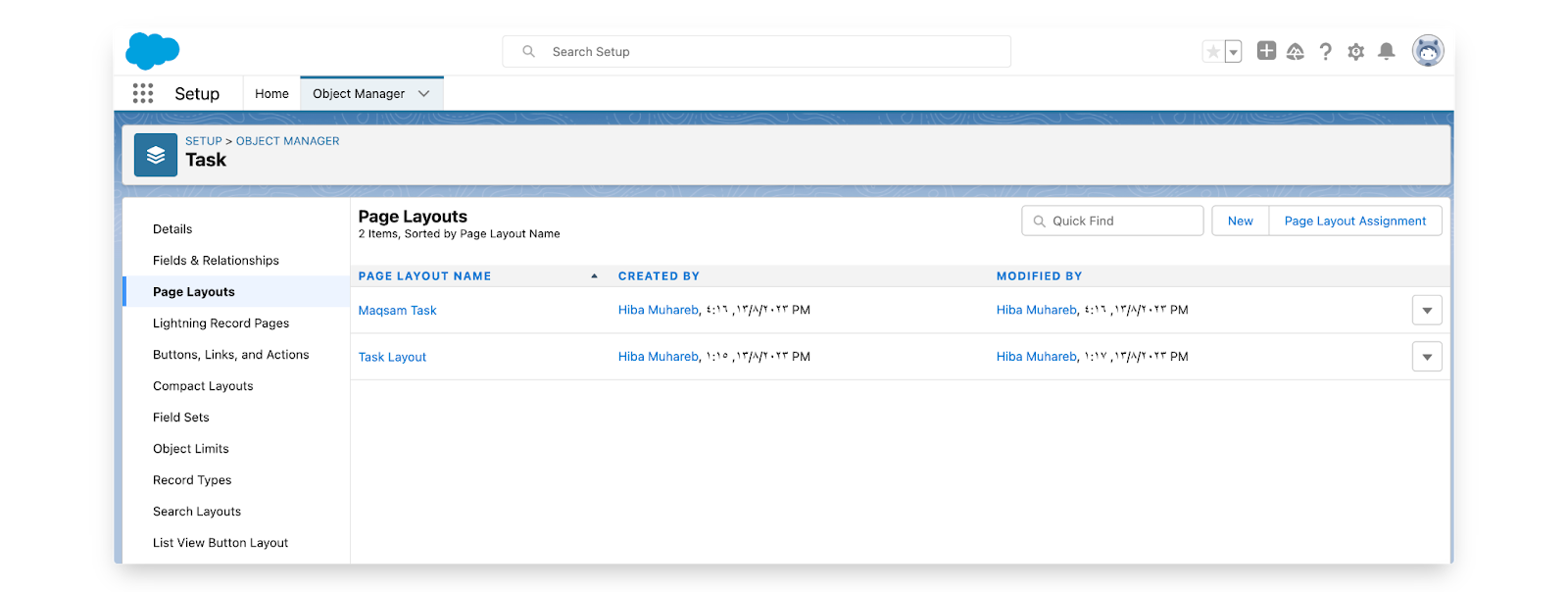
Part 7: Assign Permission Sets to Users
Optionally if you would like to give access to other people to manage the Call Center on Salesforce you can assign the permission set Maqsam Call Center Manager to any user on salesforce.