
🔍 Overview
The Agent Behavior step defines how the AI Agent interacts with callers throughout a conversation.
This includes:
-
How the AI Agent starts the call.
-
How callers can interrupt the AI Agent.
-
What actions the AI Agent can perform.
-
How calls are escalated.
-
Rules the AI Agent must follow.
-
Instructions that guide the AI Agent's behavior.
Once all required fields are completed, click Next to proceed to the next step.
Section 1: 👋 Greeting Message
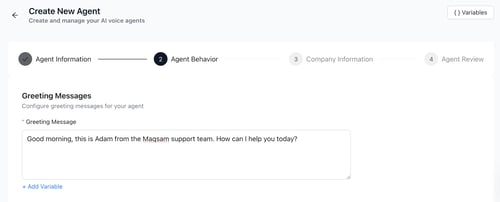
The Greeting Message is the first message the AI Agent says when a call begins.
The greeting supports dynamic variables using the + Add Variable option, such as customer name, order ID, time of day, or other available variables.
|
Field |
Required |
Description |
Tips |
| Greeting Message | ✅ Yes |
The first words the AI Agent says when a call connects. Supports dynamic variables through + Add Variable. |
💡 Keep the greeting concise and easy to understand. 💡 Include the AI Agent's name and job title to set clear expectations for the conversation. 💡 Tailor the greeting based on the call type. Inbound Calls: Focus on welcoming the caller and offering assistance. Outbound Calls: Clearly state the purpose of the call. Example: "Hi, I'm Adam from Maqsam, calling with an update regarding our latest product launch. Is this something you'd like to discuss?" |
How to Configure the Greeting Message
-
Enter the greeting message.
-
Click + Add Variable to insert dynamic information.
-
Save your changes.
Example Greeting
"Thank you for calling Maqsam. Sarah speaking. How can I assist you today?"
Section 2: 🎙️ AI Agent Interruption
This setting determines how the AI Agent behaves when the caller starts speaking while the AI Agent is talking.

| Field | Description | Tips |
| Enable Interruption (Toggle) |
When enabled (ON), the AI Agent immediately stops speaking when interrupted by the caller. When disabled (OFF), the AI Agent finishes its current response before allowing the caller to speak. |
💡 Enable this option for inbound scenarios to create a more natural conversation experience, as the agent will pause once the caller begins speaking. 💡 Consider disabling it for outbound notifications, reminders, or status updates where delivering the complete message is important. |
Section 3: 🔀 Actions
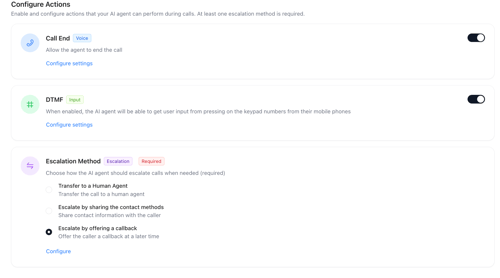
This section defines the actions the AI Agent can perform during a call.
⚠️ At least one escalation method must be configured.
| Action | Description | Tips |
| Call End |
Allows the AI Agent to end the call on specific conditions, e.g., keyword is detected, or the caller indicates they want to end the conversation. ⚠️ If disabled, the AI Agent will not attempt to end the call and the caller must end it manually. Click "Configure Settings" to set conditions. |
💡 Enable this action for all AI Agents to prevent calls from continuing unnecessarily. 💡 You can leave the configuration empty and use the platform's built-in call-ending flow, or configure a custom trigger and message if needed. |
| Escalation Method |
Select how the AI Agent should handle escalation requests. Choose one of the following options:
|
💡 Use Escalate to a Human Agent when live agents are available to receive transferred calls. 💡 Use Escalate by Sharing Contact Methods when you want callers to contact your team through alternative channels instead of transferring the call. 💡 If your business does not offer live-agent transfers, you can still select Escalate by Sharing Contact Methods even if no contact details are configured. In this case, the AI Agent can acknowledge the request without attempting a transfer. Contact methods are configured during the Company Information step. |
|
|
|
How to Configure AI Agent Actions
Action 1: Call End
-
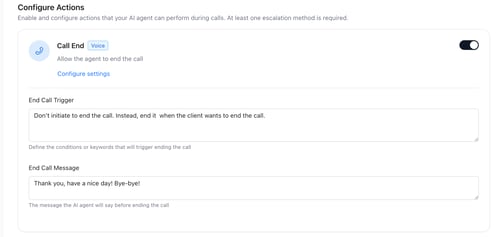
Enable the Call End toggle.
-
Click Configure Settings (optional).
-
Configure:
-
End Call Trigger
-
End Call Message
-
Action 2: DTMF
When enabled, the AI agent can receive user input by pressing the keypad numbers on their mobile phones.

How to Configure
-
Enable the DTMF toggle.
-
Click Configure Settings (optional).
-
Add the triggers for the DTMF, for example, “Trigger it when the agent is asking the customers about their phone number”
- If you are not sure what to add, just leave it empty; we handle it by default.
Action 3: Escalation Method
⚠️ This action is mandatory, and at least one option has to be selected.
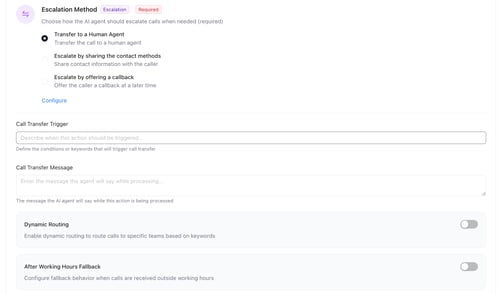
First Option: Escalate to a Human Agent
Use this option when human agents are available to receive transferred calls. The call will be routed to the agents or groups configured in the IVR.
How to Configure
-
Select Escalate to a Human Agent.
-
Click Configure Settings (optional).
-
Configure the settings below in the table.
| Setting | Description |
| Call Transfer Trigger |
Defines when the AI Agent should transfer the call to a human agent. This can occur when the conversation reaches a specific point, when a customer mentions a specific keyword, or when the customer expresses interest in speaking with a human agent. |
| Call Transfer Message |
The message the AI Agent speaks before transferring the call. Example: "I’m connecting you to a human agent now.” |
| Dynamic routing |
Enable dynamic routing to route calls to specific teams based on keywords Note For dynamic routing to work, it must be configured on the IVR AI Agent step using the same keywords mentioned in AI Agent Studio. Check this article for more details. |
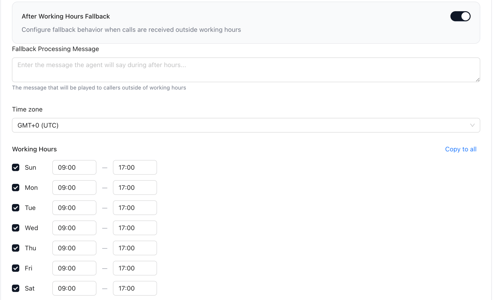
| After Working Hours Fallback | When enabled, the AI Agent checks whether the call occurs during configured working hours. If the call occurs outside working hours, the AI Agent follows the configured fallback flow instead of attempting a transfer. |
| Fallback Processing Message |
The message the AI Agent speaks when a transfer cannot be completed because the call is outside working hours. Example: “I’m not able to transfer to a human agent as we are offline now. Would you like to leave your inquiry, and someone will contact you during our working hours ?” |
| Timezone | The timezone used to determine the configured working hours for human agent transfers. |
| Working Days & Hours | Defines the days and hours during which transfers to human agents are available. Calls received outside these hours will follow the After Working Hours Fallback flow. |
💡 Tip: Configure the working hours for one day, then use Copy to All to apply the same schedule to all remaining days.
Second Option is: Escalate by Sharing Contact Methods
Use this option when you want the AI Agent to provide alternative contact methods instead of transferring the call to a human agent.
The contact methods shared by the AI Agent are configured during the Company Information step and can include:
-
WhatsApp Number
-
Phone Number
-
Email Address
-
Company Website
How to Configure
-
Select Escalate by Sharing Contact Methods.
-
Click Configure Settings (optional).
-
Configure the settings below in the table.
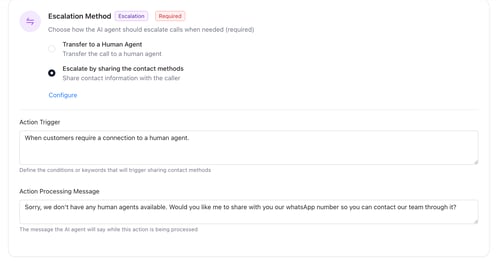
| Setting | Description |
| Action Trigger | Defines when the AI Agent should share contact information. This can occur when the conversation reaches a specific point, when a customer mentions a specific keyword, or when the customer requests assistance from a human representative. |
| Action Processing Message |
The message the AI Agent speaks before sharing the configured contact method(s). Example: "Sorry, our team is currently unavailable. Would you like me to share our WhatsApp number so you can contact us directly?" |
💡 Tip: Make sure the required contact methods are configured in the Company Information step before enabling this action.
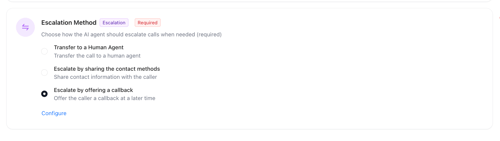
Third Option: Escalate by offering a callback
Use this option when human agents are NOT available to receive transferred calls. The customer information will be collected, then the AI agent will tell them that one of our team members will contact you soon.
How to Configure
-
Select Escalate by offering a callback
-
Click Configure Settings (optional).
-
Configure the settings below in the table.
| Settings | Description |
| Action Trigger | Defines when the AI Agent should offer a callback. This can occur when the conversation reaches a specific point, when a customer mentions a specific keyword, or when the customer requests assistance from a human representative. |
| Action Processing Message |
The message the AI Agent speaks before sharing the configured contact method(s). Example: "Sorry, our team is currently unavailable. Can you please share your contact information so one of our team will call you soon " |
Section 4: 🛡️ Guardrails (Optional)
Guardrails are rules and restrictions that the AI Agent must follow during conversations.
Use Guardrails to define business-specific requirements, compliance rules, and conversation boundaries.
| Field | Description | Tips |
| Guardrails |
Text-based rules or restrictions that guide the AI Agent's behavior during calls. Supports dynamic variables through + Add Variable (e.g., never disclose internal pricing, always confirm appointment details before ending the call, etc.). |
💡 Use clear and direct language. 💡 Use strong keywords such as MUST, SHOULD, and MUST NOT. 💡Writing these keywords in CAPITAL LETTERS is recommended for emphasis. 💡Add each guardrail on a separate line to improve readability and consistency. |
| Instructions |
Free-text guidance that tells the AI Agent how to handle conversations and specific scenarios. Supports dynamic variables through + Add Variable. ⚠️ If left empty, the AI Agent will answer directly from the Knowledge Base.
|
💡 Define how the AI Agent should handle specific scenarios. 💡 Include a brief description of your Knowledge Base structure (e.g., Pricing, Account Setup, Product Information). 💡 Use CAPITAL LETTERS to emphasize important instructions. 💡 Organize instructions in order of importance. 💡 Use a hierarchical structure for complex instructions. # level 1 💡 Use numbered steps when defining sequential call flows. For example, an outbound call about upselling a specific service, the steps can be as follows Step 1: After the greeting, ask customers if they would like to continue the call. If yes, go to step 2; if no, go to step 3 Step 2: Tell them the benefits of upselling and ask whether they are interested. Then go to step 4. Step 3: Thank the customer on his/her time and end the call. Step 4: ... and so on. 💡 You can use an LLM to assist with drafting the instructions for this section by providing context that this is for a voice AI agent and the requested call flow. Ensure you use Gemini on your Maqsam account to protect the client’s data. |
🚨 Guardrails vs Instructions (How to Choose)
|
🟥 Guardrails |
🟨 Instructions |
|
We already added generic guardrails for all AI Agents generated at Maqsam (e.g. agents are always respectful and avoid negative language) |
Can include the knowledge base directly if it is small and simple, which helps the AI respond faster |
|
Used to add additional business-specific guardrails on top of the default system behavior |
Used when you want the agent to handle a clear scenario in a structured way |
|
Focus on rules and restrictions for agent behavior |
Focus on scenario-based behavior and call flow logic |
|
Examples: MUST NOT disclose pricing MUST ALWAYS verify identity before proceeding MUST NOT transfer the call unless a valid trigger is met |
Examples: If you want the agents to collect customer information whenever they need to ask about a specific service, you can add a prompt in the instructions as follows: "When customers ask about the loan application, collect their name and phone number, then tell them that the team will contact them soon." Outbound calls with a specific sequential flow, for example: "After the greeting, ask the client if they are interested in continuing the call; if yes, respond with this answer, etc." |
Once all required fields are complete, click "Next" to proceed.