---
title: Deploying an AI Agent to a Phone Number
description: Learn how to deploy an AI Agent to a phone number using the IVR Builder, configure escalation rules, and define call routing and fallback actions.
---
[Skip to content](https://support.maqsam.com/deploying-an-ai-agent-to-a-phone-number#main-content)
English
Show submenu for translations
[](https://support.maqsam.com?hsLang=en)
Open main navigation
Close main navigation
- English
Show submenu for translations
Welcome to Maqsam
- There are no suggestions because the search field is empty.
1. [Welcome to Maqsam](https://support.maqsam.com/?hsLang=en)
2. [Artificial Intelligence](https://support.maqsam.com/artificial-intelligence?hsLang=en)
3. [AI Agent Studio](https://support.maqsam.com/artificial-intelligence?hsLang=en#ai-agent-studio)
# Deploying an AI Agent to a Phone Number
### 🔍 Overview
After creating an AI Agent, you can link it to a phone number to start handling inbound or outbound calls.
To do this, you need to configure the **AI Agent** step in the **IVR Builder** and connect it to your AI Agent service.
---
### ✅ Prerequisites
Before configuring the AI Agent in your IVR, ensure that:
- Your account has at least **one active number** capable of receiving inbound calls.
- The required permissions are enabled for the user role.
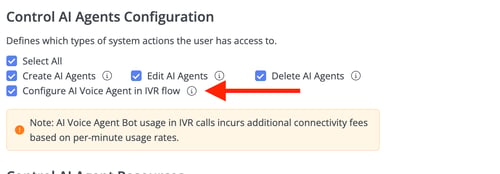
To enable the permission:
1. Navigate to **Account Settings**.
2. Select **User Roles**.
3. Choose the required role.
4. Enable the **AI Agent IVR** permission.
5. Click **Save**.
---
### ⚙️ Configure the AI Agent IVR Step
#### Step 1: Create or Edit an IVR
From the portal, create a new IVR or open an existing draft IVR.
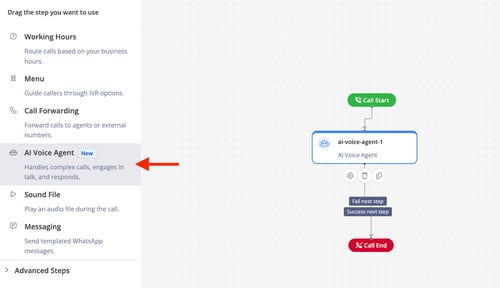
#### Step 2: Add the AI Agent Step
From the left-side menu:
1. Drag the **AI Agent** step.
2. Drop it onto the IVR canvas.
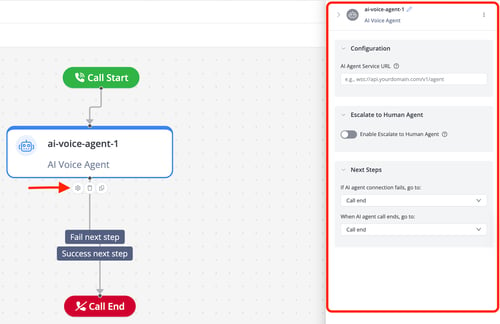
#### Step 3: Open the AI Agent Configuration
Click the AI Agent step. A configuration panel will open on the right side of the screen.
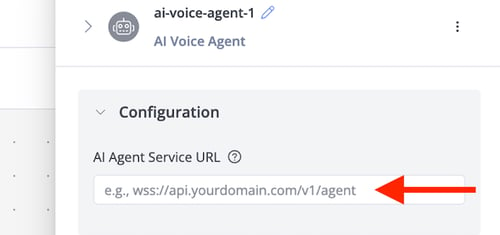
#### Step 4: Add the AI Agent Service URL
In the **AI Agent Service URL** field, paste the AI Agent URL copied from the AI Agent portal.
---
### 👤 Escalate to a Human Agent (Optional)
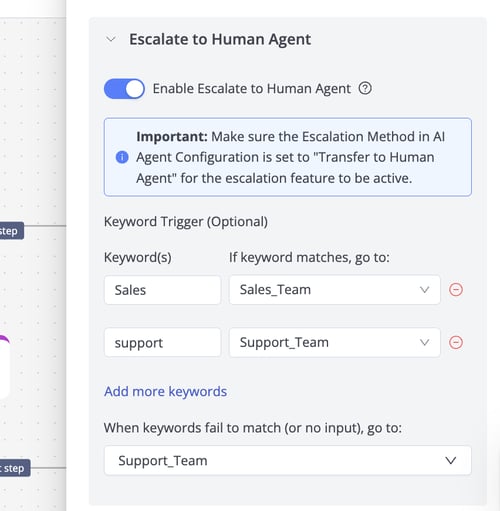
Use this section when calls may need to be transferred from the AI Agent to a human agent.
#### When Should This Option Be Disabled?
Keep this option disabled when there is no plan to transfer calls to a human agent.
**Example**: Fully automated AI Agents that handle the entire interaction without human involvement.
#### When Should This Option Be Enabled?
Enable this option when customers may need to speak with a human agent.
When enabled, the IVR will follow the escalation rules configured in this section.
#### Escalation Configuration
| **Setting** | **Description** |
| --- | --- |
| **🗝️ Keyword** | The keyword that triggers a specific IVR route when mentioned during the call. For example, if the keyword is sales, customers requesting a sales representative will be routed to the configured sales team. |
| **✅ When keyword matches, go to** | The IVR step to follow when the configured keyword is detected. For example, route the call to a **Call Forwarding** step configured with the sales team. |
| **❌ When keywords fail to match (or no input), go to** | The fallback IVR step used when the customer's request does not match the configured keyword or when no input is detected. For example, if the keyword is **sales** but the customer asks for support, the call can be routed to a fallback support flow. |
#### Important Notes
⚠️ The **Escalate to a Human Agent** option must also be enabled and configured in the AI Agent portal.
⚠️ Keywords and their descriptions should be clearly defined in the AI Agent portal to ensure accurate IVR routing.
---
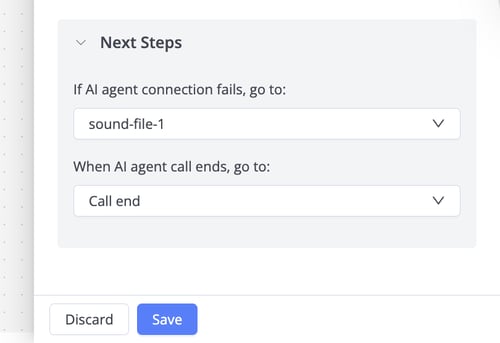
### 🔀 Configure the Next Steps
Use this section to define what should happen after the AI Agent interaction.
#### If AI Agent Connection Fails, Go To
This setting determines the next IVR step when the call cannot connect to the AI Agent.
**Example options:**
- Play a recorded message informing the customer that the service is currently unavailable.
- Route the call directly to a human agent.
- Redirect the customer to another IVR flow.
**Example message:** We cannot take your call at the moment. Please try again later.
#### When AI Agent Call Ends, Go To
This setting determines the next IVR step after the AI Agent successfully handles the call and the conversation ends.
**Example options:**
- Launch a customer satisfaction survey.
- Route the caller to another IVR step.
- End the call.
---
### 💡 Best Practice
Before publishing the IVR, perform several test calls to verify:
- The AI Agent connects successfully.
- Escalation keywords route calls correctly.
- Fallback paths behave as expected.
- Post-call actions are triggered correctly.
- [Getting Started](https://support.maqsam.com/getting-started?hsLang=en)
- [Administration](https://support.maqsam.com/administration?hsLang=en#main-content)
- [💳 Billing & Payments](https://support.maqsam.com/administration?hsLang=en#billing-payments)
- [⚙️ Account Settings](https://support.maqsam.com/administration?hsLang=en#%EF%B8%8F-account-settings)
- [Voice](https://support.maqsam.com/voice?hsLang=en#main-content)
- [🔀 IVR Builder](https://support.maqsam.com/voice?hsLang=en#ivr-builder)
- [📞 All Voice Features](https://support.maqsam.com/voice?hsLang=en#all-voice-features)
- [Messaging](https://support.maqsam.com/messaging?hsLang=en#main-content)
- [💬 WhatsApp](https://support.maqsam.com/messaging?hsLang=en#whatsapp)
- [Integrations](https://support.maqsam.com/integrations?hsLang=en#main-content)
- [🔌 HubSpot Integration](https://support.maqsam.com/integrations?hsLang=en#hubspot-integration)
- [🔌 Pipedrive Integration](https://support.maqsam.com/integrations?hsLang=en#pipedrive-integration)
- [🔌 Intercom Integrtion](https://support.maqsam.com/integrations?hsLang=en#intercom-integrtion)
- [🔌 Zendesk Integration](https://support.maqsam.com/integrations?hsLang=en#zendesk-integration)
- [🔌 FreshDesk Integration](https://support.maqsam.com/integrations?hsLang=en#freshdesk-integration)
- [🔌 Salesloft Integration](https://support.maqsam.com/integrations?hsLang=en#salesloft-integration)
- [🔌 Salesforce Integration](https://support.maqsam.com/integrations?hsLang=en#salesforce-integration)
- [🔌 Zoho Phonebridge Integration](https://support.maqsam.com/integrations?hsLang=en#zoho-phonebridge-integration)
- [Artificial Intelligence](https://support.maqsam.com/artificial-intelligence?hsLang=en#main-content)
- [AI Agent Studio](https://support.maqsam.com/artificial-intelligence?hsLang=en#ai-agent-studio)
- [Reports](https://support.maqsam.com/reports?hsLang=en)
- [Legal & Compliance](https://support.maqsam.com/legal-compliance?hsLang=en)
- [FAQs](https://support.maqsam.com/faqs?hsLang=en#main-content)
- [🔌 Integrations](https://support.maqsam.com/faqs?hsLang=en#integrations)
- [⚙️ Accounts](https://support.maqsam.com/faqs?hsLang=en#%EF%B8%8F-accounts)
- [💬 Messaging](https://support.maqsam.com/faqs?hsLang=en#messaging)
- [💳 Payments](https://support.maqsam.com/faqs?hsLang=en#payments)
- [📞 Voice](https://support.maqsam.com/faqs?hsLang=en#voice)
- [✅ Troubleshooting](https://support.maqsam.com/faqs?hsLang=en#troubleshooting)
[](https://maqsam.com/)
Copyright © 2026, Maqsam