
🔍 Overview
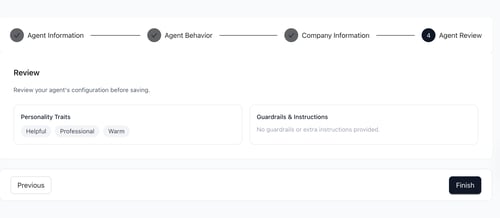
The Agent Review step is the final step before creating your AI Agent.
This step allows you to review the agent configuration, make any final changes, and create the agent.
After the agent is created, you can test it, edit its configuration, duplicate it, delete it, and review its call logs.
Section 1: ✅ Review Your Configuration
Before creating the agent, review the information displayed on the screen.
| Configuration Area | Description |
| 👤 Personality Traits | Confirms the traits you selected (e.g., Friendly, Professional). |
| 📑 Guardrails & Instructions | Shows any guardrails or extra instructions, or indicates if none were provided. |
Making Changes
If you need to modify any part of the configuration, follow the below steps:
-
Click Previous to return to the earlier steps.
-
Update the required settings.
-
Return to the Agent Review step to continue.
Create the Agent
Once you are satisfied with the configuration, follow the below steps:
-
Review all displayed information.
-
Click Finish.
The AI Agent will be created and added to your AI Voice Agents list.
Section 2: 🤖 Managing Your AI Agent
After the AI Agent is created, it will appear in the AI Voice Agents list on the main dashboard. From there, you can perform the following actions:
| Action | Description |
| 🤖 Test Agent | Click the link icon to open the Test Voice Agent dialog and start a test call. |
| ✏️ Edit Agent | Open the three-dot menu and select Edit to modify the agent configuration. |
| ➕ Duplicate Agent | Create a copy of an existing agent to use as a starting point for a new one. |
| 🗑️ Delete Agent | Open the three-dot menu and select Delete to remove the agent. |
| 📞 View Call Logs | Open Call Logs from the left sidebar to review recorded conversations and call activity. |
Once your agent is created, you can continue testing and refining its configuration to improve its performance and customer experience.