---
title: Configuring Company Information Step
description: Configure your AI Agent's company information by adding business details, contact methods, and knowledge base documents to help the agent provide accurate and relevant responses.
---
[Skip to content](https://support.maqsam.com/configuring-company-information-step#main-content)
English
Show submenu for translations
[](https://support.maqsam.com?hsLang=en)
Open main navigation
Close main navigation
- English
Show submenu for translations
Welcome to Maqsam
- There are no suggestions because the search field is empty.
1. [Welcome to Maqsam](https://support.maqsam.com/?hsLang=en)
2. [Artificial Intelligence](https://support.maqsam.com/artificial-intelligence?hsLang=en)
3. [AI Agent Studio](https://support.maqsam.com/artificial-intelligence?hsLang=en#ai-agent-studio)
# Configuring Company Information Step
### 🔍 Overview
The **Company Information** step provides the AI Agent with the information it needs to represent your business accurately during calls. This includes the following:
- Company details
- Business context
- Contact information
- Knowledge base documents
Providing accurate and complete information helps the AI Agent answer customer questions more effectively and share the correct contact details when needed.
---
### Section 1: 🏢 Company Details
These fields provide the AI Agent with basic information about your business.
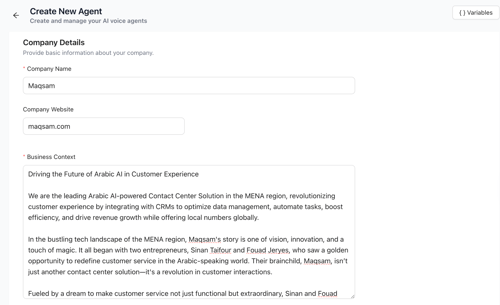
| **Field** | **Required** | **Description** | **Tips** |
| --- | --- | --- | --- |
| **Company Name** | ✅ Yes | The name of your company (e.g., "Maqsam") | 💡 This name may be communicated during calls, so make sure to write it correctly. 💡 To improve pronunciation, and the company name to the pronunciation dictionary and adjust it if needed. |
| **Company Website** | Optional | Your company's website URL (e.g., "www.maqsam.com") | 💡 Enter the website without (https://) |
| **Business Context** | ✅ Yes | A description of your products, services, and what customers should know about your business. This is the agent's "knowledge" about your business. | 💡 Write the Business Context in plain, conversational language. 💡 The more detail you provide, the more accurately the AI Agent can answer customer questions. |
---
### Section 2: 📞 Contact Details (Optional)
Contact details can be shared by the AI Agent when needed, particularly when the **Escalate by Sharing Contact Methods** action is configured.
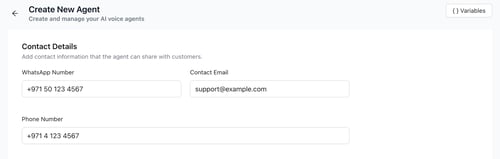
| **Field** | **Example** |
| --- | --- |
| **WhatsApp Number** | +971 50 123 4567 |
| **Contact Email** | support@example.com |
| **Phone Number** | +971 4 123 4567 |
---
### Section 3: 📚 Knowledge Base (Optional)
Knowledge Base documents provide the AI Agent with additional information to help answer customer questions more accurately.
| **Action** | **Description** | **Tips** |
| --- | --- | --- |
| **+ Add Knowledge Base** | Link existing Knowledge Base documents to the AI Agent. Click this button to browse and select documents from your **Knowledge Base library**. | 💡 Linking a Knowledge Base gives the AI Agent access to FAQs, product documentation, policies, and other reference materials. 💡 Make sure your documents are clear and well-organized. 💡 Supported file formats: PDF, DOCX, TXT, MD, PPTX, CSV, JSON, and XLSX. |
#### How to Add a Knowledge Base Document
1. Click **+ Add Knowledge Base**.
2. A window will open showing all previously uploaded **Knowledge Base documents**.
3. Select an **existing** document by checking its box, or upload a **new** document.
4. Once the document is **ready**, check the box next to the document and click **OK** to link it to the AI Agent.
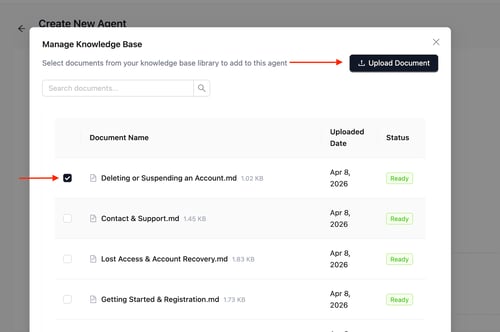
5. If the document status changes to **Failed**, upload the file again.
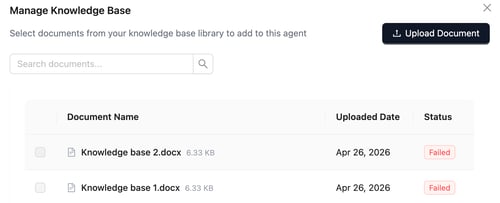
6. Once all required fields are complete, click "**Next**" to proceed.
- [Getting Started](https://support.maqsam.com/getting-started?hsLang=en)
- [Administration](https://support.maqsam.com/administration?hsLang=en#main-content)
- [💳 Billing & Payments](https://support.maqsam.com/administration?hsLang=en#billing-payments)
- [⚙️ Account Settings](https://support.maqsam.com/administration?hsLang=en#%EF%B8%8F-account-settings)
- [Voice](https://support.maqsam.com/voice?hsLang=en#main-content)
- [🔀 IVR Builder](https://support.maqsam.com/voice?hsLang=en#ivr-builder)
- [📞 All Voice Features](https://support.maqsam.com/voice?hsLang=en#all-voice-features)
- [Messaging](https://support.maqsam.com/messaging?hsLang=en#main-content)
- [💬 WhatsApp](https://support.maqsam.com/messaging?hsLang=en#whatsapp)
- [Integrations](https://support.maqsam.com/integrations?hsLang=en#main-content)
- [🔌 HubSpot Integration](https://support.maqsam.com/integrations?hsLang=en#hubspot-integration)
- [🔌 Pipedrive Integration](https://support.maqsam.com/integrations?hsLang=en#pipedrive-integration)
- [🔌 Intercom Integrtion](https://support.maqsam.com/integrations?hsLang=en#intercom-integrtion)
- [🔌 Zendesk Integration](https://support.maqsam.com/integrations?hsLang=en#zendesk-integration)
- [🔌 FreshDesk Integration](https://support.maqsam.com/integrations?hsLang=en#freshdesk-integration)
- [🔌 Salesloft Integration](https://support.maqsam.com/integrations?hsLang=en#salesloft-integration)
- [🔌 Salesforce Integration](https://support.maqsam.com/integrations?hsLang=en#salesforce-integration)
- [🔌 Zoho Phonebridge Integration](https://support.maqsam.com/integrations?hsLang=en#zoho-phonebridge-integration)
- [Artificial Intelligence](https://support.maqsam.com/artificial-intelligence?hsLang=en#main-content)
- [AI Agent Studio](https://support.maqsam.com/artificial-intelligence?hsLang=en#ai-agent-studio)
- [Reports](https://support.maqsam.com/reports?hsLang=en)
- [Legal & Compliance](https://support.maqsam.com/legal-compliance?hsLang=en)
- [FAQs](https://support.maqsam.com/faqs?hsLang=en#main-content)
- [🔌 Integrations](https://support.maqsam.com/faqs?hsLang=en#integrations)
- [⚙️ Accounts](https://support.maqsam.com/faqs?hsLang=en#%EF%B8%8F-accounts)
- [💬 Messaging](https://support.maqsam.com/faqs?hsLang=en#messaging)
- [💳 Payments](https://support.maqsam.com/faqs?hsLang=en#payments)
- [📞 Voice](https://support.maqsam.com/faqs?hsLang=en#voice)
- [✅ Troubleshooting](https://support.maqsam.com/faqs?hsLang=en#troubleshooting)
[](https://maqsam.com/)
Copyright © 2026, Maqsam