---
title: Configuring Agent Information Step
description: Learn how to configure your AI Agent's profile, voice settings, and pronunciation dictionary, including templates, speech speed, and custom pronunciations.
---
[Skip to content](https://support.maqsam.com/configuring-agent-information-step#main-content)
English
Show submenu for translations
[](https://support.maqsam.com?hsLang=en)
Open main navigation
Close main navigation
- English
Show submenu for translations
Welcome to Maqsam
- There are no suggestions because the search field is empty.
1. [Welcome to Maqsam](https://support.maqsam.com/?hsLang=en)
2. [Artificial Intelligence](https://support.maqsam.com/artificial-intelligence?hsLang=en)
3. [AI Agent Studio](https://support.maqsam.com/artificial-intelligence?hsLang=en#ai-agent-studio)
# Configuring Agent Information Step
### 🔍 Overview
The **Agent Information** step defines your AI Agent's identity and voice. These settings influence the overall voice experience, including:
- Setting the AI Agent's name and role.
- Choosing from a variety of voice options, including different accents, dialects, genders, and speaking styles.
- Selecting the language used during calls.
- Customizing the pronunciation of specific words and phrases.
Once all required fields are completed, click **Next** to proceed to the next step.
---
### Section 1: 👤 Agent Profile
The Agent Profile section defines the AI Agent's identity, role, and use case.
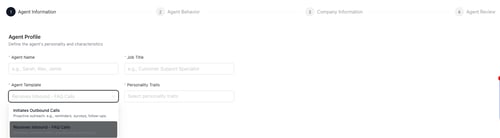
| **Field** | **Required** | **Description** | **Tips** |
| --- | --- | --- | --- |
| **Agent Name** | ✅ Yes | The Agent Name will be used as a name to communicate with clients throughout the calls (e.g., Sarah, Alex, Jamie). | 💡 The Agent name represents your brand identity and will be used on all calls your AI agent makes with your customers. So, make sure to select an appropriate name that will build your brand image. |
| **Job Title** | ✅ Yes | The Job Title defines the AI Agent's role (e.g., Customer Support Specialist). The selected role helps the AI Agent shape its identity and interact with customers in a way that is appropriate for its responsibilities. | |
| **Agent Template** | ✅ Yes | The Agent Template determines the AI Agent's underlying logic and available interface capabilities. ⚠️ Selecting the correct template is an important configuration step, as it directly affects how the AI Agent behaves. You can select one of the following ways: - **Inbound Templates**: Optimized for handling incoming customer inquiries and FAQ-based interactions. - **Outbound Templates**: Designed for use cases such as notifications, sales calls, and collections. | |
### How to Configure the Agent Profile
1. Enter a value in the **Agent Name** field.
2. Enter a value in the **Job Title** field.
3. Open the **Agent Template** dropdown.
4. Select the template that best aligns with the AI Agent's objectives and use case.
---
### Section 2: 🎙️ Agent Voice
The Agent Voice section controls how the AI Agent sounds during calls.
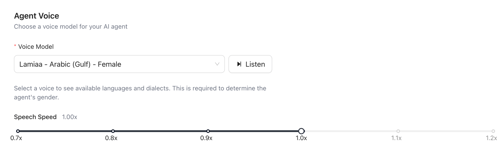
| **Field** | **Required** | **Description** | **Tips** |
| --- | --- | --- | --- |
| **Voice Model** | ✅ Yes | The Voice Model is the voice used when communicating with customers. Each AI Agent can have only one Voice Model assigned. Voice models may differ in: - Pitch - Depth - Speaking style - Natural pauses | 💡 Listen to multiple voice options before making a final selection. 💡 Select a dialect that matches your customer base. For example, if your customers are primarily located in Saudi Arabia, consider using a Gulf or Saudi voice. |
| **Speech Speed** | Optional | Speech Speed allows you to adjust how quickly the AI Agent speaks. **Available range**: 0.5x to 1.2x **Default value**: 1.0x | ⚠️ Each voice model has its own natural speaking pace. Some voices may sound faster or slower even when set to the same speech speed. 💡 After selecting a voice, test different speech speeds to find the most natural experience for your customers. |
### How to Configure the Agent Voice
1. Open the **Voice Model** dropdown.
2. Select a voice.
- Each voice displays: Voice Name, Language or Dialect, Gender
- Example: Hannah - English (British) - Female
3. Adjust the **Speech Speed** slider if required:
- Drag left to slow down speech.
- Drag right to increase speech speed.
---
### Section 3: 🗣️ Pronunciation Dictionary (PD)
The Pronunciation Dictionary allows you to customize how specific words are pronounced during calls.
This can be useful for:
- Company names
- Product names
- Acronyms
- Industry-specific terminology
- Customer names
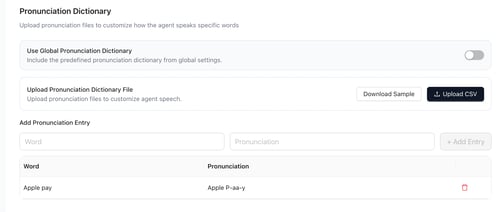
| **Action** | **Description** | **Tips** |
| --- | --- | --- |
| **Use Global Pronunciation Dictionary** | Toggle ON this option to inherit pronunciation settings from your account's Global Pronunciation Dictionary. | 💡 The Global Pronunciation Dictionary can be accessed from the left-side menu and applies pronunciation rules across all AI Agents within the account. ⚠️ If the same word exists in both the Global Pronunciation Dictionary and the Agent Pronunciation Dictionary, the Agent Pronunciation Dictionary takes priority. |
| **Upload CSV** | Upload a CSV file containing multiple word-pronunciation pairs. | 💡 This option is useful when configuring a large number of pronunciation entries at once. |
| **Download Sample** | Download a sample CSV file to review the required format and example pronunciation entries before uploading your own file. | |
| **Add Pronunciation Entry** | Manually create custom pronunciation rules using the Word and Pronunciation fields. | **💡 Arabic Pronunciation Tips:** Use Tashkeel across all letters in the word to improve pronunciation accuracy. Example: تفضيل & تَفْضِيلْ **💡 English Pronunciation Tips:** Use hyphens (-) to split syllables and guide pronunciation. Example: Apple Pay , can be added as: Apple P-aa-y. |
### How to Add a Pronunciation Entry Manually
- Enter the word in the Word field.
- Enter the phonetic pronunciation in the Pronunciation field.
- Click + Add Entry to save it.
- You cannot edit any pronunciation entry; instead, delete any entry by clicking on the delete icon next to it, then add it again.
Once you have completed all fields in Step 1, click "Next" (bottom-right).
---
### ✅ Before Moving to the Next Step
Before proceeding to **Agent Behavior**, verify that:
- The Agent Name is configured correctly.
- The Job Title accurately represents the AI Agent's role.
- The appropriate Agent Template is selected.
- The desired Voice Model has been chosen.
- The Speech Speed is suitable for your audience.
- Any required pronunciation entries have been added.
---
### 💡 Best Practices
- Select an Agent Name that aligns with your brand identity.
- Choose an Agent Template based on the intended use case rather than the department name.
- Test multiple voice models before deployment.
- Select a dialect that matches your target audience.
- Review pronunciation settings for company names, products, and commonly used industry terms.
- Perform test calls after making voice or pronunciation changes.
- [Getting Started](https://support.maqsam.com/getting-started?hsLang=en)
- [Administration](https://support.maqsam.com/administration?hsLang=en#main-content)
- [💳 Billing & Payments](https://support.maqsam.com/administration?hsLang=en#billing-payments)
- [⚙️ Account Settings](https://support.maqsam.com/administration?hsLang=en#%EF%B8%8F-account-settings)
- [Voice](https://support.maqsam.com/voice?hsLang=en#main-content)
- [🔀 IVR Builder](https://support.maqsam.com/voice?hsLang=en#ivr-builder)
- [📞 All Voice Features](https://support.maqsam.com/voice?hsLang=en#all-voice-features)
- [Messaging](https://support.maqsam.com/messaging?hsLang=en#main-content)
- [💬 WhatsApp](https://support.maqsam.com/messaging?hsLang=en#whatsapp)
- [Integrations](https://support.maqsam.com/integrations?hsLang=en#main-content)
- [🔌 HubSpot Integration](https://support.maqsam.com/integrations?hsLang=en#hubspot-integration)
- [🔌 Pipedrive Integration](https://support.maqsam.com/integrations?hsLang=en#pipedrive-integration)
- [🔌 Intercom Integrtion](https://support.maqsam.com/integrations?hsLang=en#intercom-integrtion)
- [🔌 Zendesk Integration](https://support.maqsam.com/integrations?hsLang=en#zendesk-integration)
- [🔌 FreshDesk Integration](https://support.maqsam.com/integrations?hsLang=en#freshdesk-integration)
- [🔌 Salesloft Integration](https://support.maqsam.com/integrations?hsLang=en#salesloft-integration)
- [🔌 Salesforce Integration](https://support.maqsam.com/integrations?hsLang=en#salesforce-integration)
- [🔌 Zoho Phonebridge Integration](https://support.maqsam.com/integrations?hsLang=en#zoho-phonebridge-integration)
- [Artificial Intelligence](https://support.maqsam.com/artificial-intelligence?hsLang=en#main-content)
- [AI Agent Studio](https://support.maqsam.com/artificial-intelligence?hsLang=en#ai-agent-studio)
- [Reports](https://support.maqsam.com/reports?hsLang=en)
- [Legal & Compliance](https://support.maqsam.com/legal-compliance?hsLang=en)
- [FAQs](https://support.maqsam.com/faqs?hsLang=en#main-content)
- [🔌 Integrations](https://support.maqsam.com/faqs?hsLang=en#integrations)
- [⚙️ Accounts](https://support.maqsam.com/faqs?hsLang=en#%EF%B8%8F-accounts)
- [💬 Messaging](https://support.maqsam.com/faqs?hsLang=en#messaging)
- [💳 Payments](https://support.maqsam.com/faqs?hsLang=en#payments)
- [📞 Voice](https://support.maqsam.com/faqs?hsLang=en#voice)
- [✅ Troubleshooting](https://support.maqsam.com/faqs?hsLang=en#troubleshooting)
[](https://maqsam.com/)
Copyright © 2026, Maqsam